Install VLC 2.0 In Ubuntu 11.10 Oneiric Ocelot

5:55 PM

vlc 2.0

VLC 2.0 "Twoflower" has been released with faster decoding, support for more video formats, a reworked web interface, experimental BluRay Discs support (without menus) and more.


VLC 2.0 highlights:
  • Major Video Core and Outputs rework and rewrite
  • Almost every video filter can now be transcoded
  • Experimental Blu-Ray Discs support using libbluray
  • Support for VDR recordings folders
  • HTTP Live Streaming playback support
  • Mpris v2 support so it can make use of the Ubuntu Sound Menu, etc.
  • PulseAudio audio input support
  • One can now use ffmpeg-mt in conjunction with vlc, to split decoding load on multiple cores. H.264, VP3, VP8, JPEG-2000, Mpeg-4 ASP/DivX and RV3/RV4 are notably concerned.
  • Experimental Hardware decoding using Broadcom CrystalHD cards
  • New module for decoding EBU subtitles (.stl)
  • Support for Lagarith Lossless video codec
  • Support for images/cover art in wma/wmv/asf files
  • Improvements in .ape files metadata reading and writing
  • Major improvements in Matroska (mkv) chapters/segments handling and seeking
  • Multiple Qt interface and Skins2 improvements
  • Rewrite of the web interface, using jQuery
  • Support for Vorbis and Theora in RTP
Complete list of changes, HERE.


Install VLC 2.0 in Ubuntu 11.10 Oneiric Ocelot


The latest stable VLC 2.0 can be installed in Ubuntu 11.10 Oneiric Ocelot using the commands below:
sudo add-apt-repository ppa:n-muench/vlc
sudo apt-get update
sudo apt-get install vlc

To upgrade from an older VLC version, instead of the last command above, use:
sudo apt-get dist-upgrade

If you get a mplayer related error, reinstall mplayer and it should work.

VLC 2.0 is already available in the Ubuntu 12.04 repositories, so if you're using Precise, install VLC via Synaptic / Software Center.

Update: here's a how-to on getting encrypted blu-ray discs to work on VLC 2.0, for Windows, Mac and Linux - see HERE. Note that using the PPA in this post, libaacs.so.0 should already be installed.

Keep in mind that Blu-ray is considered experimental in the latest VLC 2.0, so it may not work with all discs or it may be buggy.

Unfortunately, there's no stable VLC PPA for older Ubuntu versions.

via LFFL

0 comments

» read more....

Beets Music Tagger: Command Line Tool To Fix Metadata And Organize Your Music Library

8:53 PM

beets is a cross-platform command line music tagger and organizer which you can use to "get your music collection right once and for all".

It can improve your music collection metadata by using MusicBrainz, download cover art for all your albums, reorganize your music files, fix filenames and more.

Further more, beets is extensible through plugins which add extra functionality like  embedding or extracting album art from files, fetch lyrics for all your songs, clean up tags and and there's even a HTML5 web player (though it's very basic and can't do too much for now).


beets

While beets tries to automatically get the metadata based on already existing tags,  if the similarity is under 95%, beets will prompt you to select the best match so the process is not fully automated (though you can set it to automatically skip albums that need user input). Also, beets might not be able to automatically get the metadata if some albums don't have any tags at all.

In my test, beets worked great to fix bad or missing tags, but fetching the album art didn't work so great: it was able to download album art for only about 25% of the albums.


Beets introduction video


Here's a introduction video for beets, created by its developer:


Installation


To install beets in Ubuntu, you need to install its dependencies firstly:
sudo apt-get install python-dev python-setuptools python-pip

Then, install beets using the following command
sudo pip install beets

In Ubuntu 12.04 Precise Pangolin, you can install beets from the official repositories.

For Arch Linux, get the latest version via AUR.


beets installation for other Linux distributions, Windows and Mac OS X: Getting Started with beets.


How to use beets


Firstly, create a new file called '.beetsconfig' in your home directory and open it with a text editor. For instance, run this command if you have Gedit installed:
gedit ~/.beetsconfig

And in this file, copy/paste the following:
[beets]
directory: /path/to/music
library: /path/to/musiclibrary.blb

Where:
  • "directory" is the path to the directory where your music will be copied after it has been re-organized by beets (to get beets to use your current directory structure and don't copy your music, see below).
  • "library" is the path do your music library database (the file doesn't initially exist, so just enter the path to where you want it to be stored)

Then save the file. All available configuration options are available HERE.


Now you can start importing your music to the beets library. By default, beets will copy the imported music into the directory you specified in the config file - to start this process (it may take a long time!), use the command below:
beet import /path/to/music

If you want beets to use your current directory structure and don't copy the music to the directory defined in its configuration, use "-C":
beet import -C /path/to/music

To only import files, without autotagging, use "-A":
beet import -A /path/to/music

You can also set beets not to write the tags to the files but keep them in its database only ("-W"), never prompt for input when importing ("-q" - quiet mode) and more.


Enabling acoustic fingerprinting for beets


beets can use acoustic fingerprinting (through Chromaprint/Acoustid), a technique for identifying songs based on audio signal instead of using metadata information via a plugin. There is a downside to using it though: it uses a lot more CPU and memory than the default tagger. If this is not an inconvenient for you, install it using the following commands:
sudo apt-get install apt-get install python-gst0.10-dev gstreamer0.10-plugins-good gstreamer0.10-plugins-bad gstreamer0.10-plugins-ugly
sudo pip install pyacoustid

Then, to enable the Chromaprint/Acoustid plugin, open the beets config file (see above) and paste this under "[beets]":
plugins: chroma


For more info about beets, including: using the auto-tagger, more 'beet' commands (list, add, etc), plugins, etc., see the beets documentation.


Thanks to Pablo Jimeno for the tip!

0 comments

» read more....

Puddletag 1.0 Beta Released With Fixed MusicBrainz and Discogs Tag Sources

2:25 AM


Puddletag is an audio tag editor for Linux, very similar to the popular Windows application Mp3tag.

The MusicBrainz and Discogs music tag sources stopped working in the latest stable Puddletag version for quite some time because of API changes but today, a new Puddletag version has been released (1.0 beta), finally bringing support for the latest MusicBrainz and Discogs APIs.

Puddletag 1.0 beta also comes with full support for Mp3tag tag sources (in my test though, I couldn't get any Mp3tag tag sources to work for some reason - bug reported), mass tagging improvements and other changes.

This is a beta so you might encounter bugs - report them here.


Download Puddletag


Because this is a beta release, I didn't upload it to our stable Puddletag PPA. You can however install the latest Puddletag 1.0 beta in Ubuntu and stay up to date with future beta releases by using the WebUpd8 Unstable PPA. You can also download the .deb / source from its website.

0 comments

» read more....

Install Amarok 2.5 In Kubuntu 11.10 Oneiric Ocelot (PPA)

7:58 AM


Amarok 2.5 has been recently released and is now available in the Kubuntu Backports PPA for Kubuntu 11.10 Oneiric Ocelot users.

Amarok 2.5 comes with a many improvements like re-written USB Mass Storage support, GPodder.net podcast synchronization, many iPod plugin fixes as well as an integrated Amazon MP3 store.


Other Amarok 2.5 changes:
  • Auto-save the playlist so that it is not lost if Amarok crashes
  • Last.fm neighbour / friend avatars are now loaded on demand
  • Ability to disable or enable browser widget backgrounds
  • Tracks can now be dropped in Saved Playlists' empty area to create a new playlist
  • Ability to make TagGuesser presets
  • Total rewrite of Automated Playlist Generator algorithm
  • Improved the playlist synchronisation feature
  • iPhone 3G (and perhaps later models) should be correctly recognized by Amarok now
  • Fixed various crashes for Wikipedia applet, MusicBrainz search, Qt 4.8

See the complete Amarok 2.5 changelog, HERE.


Install Amarok 2.5 in Kubuntu 11.10 Oneiric Ocelot


To install Amarok 2.5 in Kubuntu 11.10 Oneiric Ocelot, open a terminal and copy/paste the commands below:
sudo add-apt-repository ppa:kubuntu-ppa/backports
sudo apt-get update
sudo apt-get install amarok

Note: the PPA provides only Amarok and an Amarok dependency for Kubuntu 11.10 Oneiric Ocelot, however, in the future you may get backports for other KDE applications / packages too.

For other Linux  distributions or Windows, see the Amarok download page.

0 comments

» read more....

Nuvola Player 1.0 (Stable) Released

6:11 AM


Nuvola Player (previously Google Music Frame) is a music player especially designed for cloud music. Even though it's only a "frame", it's a great application that comes with features such as Ubuntu Sound Menu (mpris2 - also works with some GNOME Shell extensions) support, notifications, multimedia keys, Unity quicklists and many extra features thanks to user scripts (like last.fm scrobbling for Google Music, etc.).

Nuvola Player got Grooveshark, Hype Machine and 8tracks support recently (in addition to Google Music) and we've talked about this already, but if you like using stable releases, you'll be glad to know that Nuvola Player 1.0 has finally been released.


Other changes in Nuvola Player 1.0: 
  • a new menu bar and reworked tool bar (and you can select to show them both or only one of them)
  • support for SOCKS proxy servers
  • various configuration options like: turn off notifications, visibility of tray icon, close button behavior, simple settings for user scripts

You can see the official release notes, here.


Install Nuvola Player (stable) in Ubuntu


If you've added the Nuvola Beta or Unstable PPA and want to install Nuvola 1.0 stable, disable them and remove Nuvola, then use the commands below (or use PPA Purge).

To add the Nuvola Stable PPA and install Nuvola Player (stable) in Ubuntu, use the following commands:
sudo add-apt-repository ppa:nuvola-player-builders/stable
sudo apt-get update
sudo apt-get install nuvolaplayer

For Fedora, see: How To Install Nuvola Player (Ex Google Music Frame) In Fedora.

To get the code, report bugs and so on, check out Nuvola Player @ Launchpad.

0 comments

» read more....

How To Install The Native Spotify Linux Client In Ubuntu (With Fixes)

6:49 PM


Spotify is a music streaming service that comes with a client which supports Microsoft Windows, Mac OS X, Linux as well as mobile devices such as iOS, Android, BlackBerry, Windows Mobile, Windows Phone, S60 (Symbian), webOS and more. The service is only available in a few countries for now, such as USA, UK, Spain, Sweden and more - check out the Spotify website for more info.

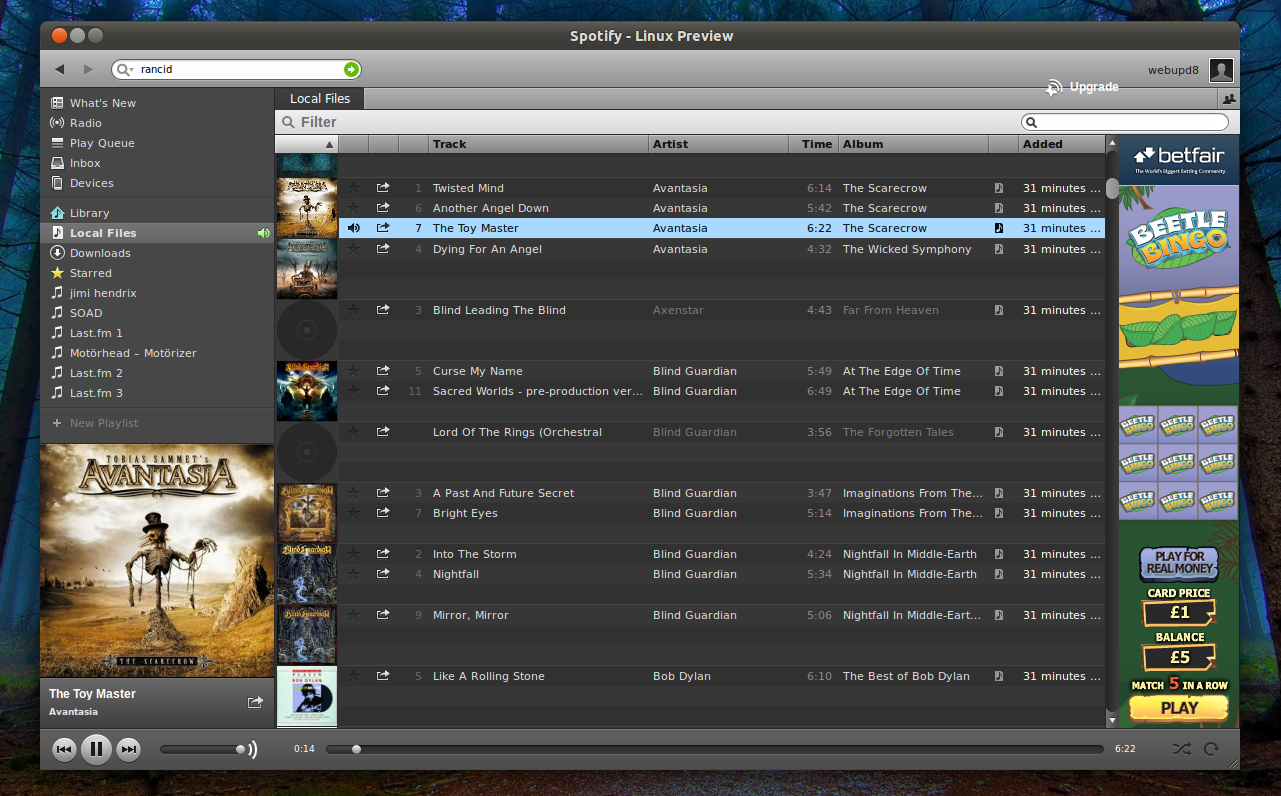
The (official) native Spotify Linux client got support for free accounts recently. Here is how to install it on Ubuntu and fix some bugs such as not being able to play local music in Ubuntu 11.10 Oneiric Ocelot.

Please note that Spotify for Linux is a preview release and is currently unsupported so you may encounter issues!


Install the native Linux Spotify client under Ubuntu


1. Add the Spotify repository (will be used to install Spotify and stay up to date with the latest Spotify versions).

Launch Software Sources using the following command:
gksu --desktop /usr/share/applications/software-properties-gtk.desktop /usr/bin/software-properties-gtk

2. Under Software Sources, switch to the "Other Software" tab, click "Add" and paste the following line:
deb http://repository.spotify.com stable non-free

Once you do this, two repository lines are actually added and the second one (for source code) will display an error when running "sudo apt-get update", so remove this line:
http://repository.spotify.com stable non-free (Source Code)

from the same "Other Software" tab in Software Sources. Once you're done, close the Software Sources window.

3. Import the Spotify repository key and install Spotify for Linux:
sudo apt-key adv --keyserver keyserver.ubuntu.com --recv-keys 4E9CFF4E
sudo apt-get update
sudo apt-get install spotify-client-qt


Spotify fixes for Ubuntu


Spotify has been installed, but if you are using Ubuntu 11.10 Oneiric Ocelot (or newer), you can't play local music, or at least some file types don't work and you'll get a sound decoder error:

"There is a problem with the sound decoder. Spotify can't play music"

This may even occur for some Spotify tracks.

To fix this, you need to install libavutil50, libavcodec52 and libavformat52 from the Ubuntu 11.04 Natty Narwhal repository. To make it easier (thanks to yugnip!), you can get all 3 from here:

Download the .debs above in a new folder, then use the terminal to navigate to it ("cd /path/to/folder") and run:
sudo dpkg -i *.deb


Another annoyance is that Spotify for Linux doesn't display any artwork in the Ubuntu Sound Menu, at least in Ubuntu 11.10. To fix this, use the command below:
mkdir -p ~/.cache/indicators/sound/album-art-cache

Unfortunately I didn't found a fix for the out of place "Upgrade" button.


via PinguyOS forum; thanks to Antoni "Pinguy" for the tip!

1 comments

» read more....

Radio Tray Gets Plugins Support

7:56 PM


Radio Tray is a minimalistic radio player for Linux that runs in the systray (can also use an AppIndicator for Ubuntu). The application is very lightweight and straightforward to use and comes with notifications support, multimedia keys and a sleep timer.


A new RadioTray version was recently released with plugins support so if you're a Python developer, you can now easily create new RadioTray plugins (my only wish is a last.fm scrobbling plugin).

The new version also comes with read-only bookmark support, improved user interaction in bookmarks configuration dialog, moved various features to plugins (sleep timer, notifications, media shortcuts), a new history plugin and bug fixes.

Download Radio Tray (.deb and source files available)

0 comments

» read more....

Lossless Audio Split Tools Updates: Flacon, Split Lossless Nautilus Script

10:14 PM


Split Lossless is a Nautilus script created by WebUpd8 reader CokiDVD to split single lossless audio files (ape, flac, wavpack) by .cue file into flac or mp3 (320kbps or 192kbps). Further more, the script also adds tags to the new files so all the resulting flac or mp3 files will have the artist, album, title and genre tags set up automatically.

The latest Split Lossless version (released a couple of days ago) comes with two new features: track name editor and album information editor and improvements such as: show selected tracks on main window.

Split Lossless is available in a PPA so to install it in Ubuntu, use the commands below:

sudo add-apt-repository ppa:cokicd/split-lossless
sudo apt-get update
sudo apt-get install split-lossless

In the future, a batch version might be released too. Using this version, you'll be able to load a bunch of cds and split them automatically without any user input.

For other Linux distributions, see: http://code.google.com/p/split-lossless/.


Flacon is a python tool to split lossless files like APE, FLAC, TTA, Wav or WavPack and automatically add tags to the resulting files. With Flacon, you are in total control of the output file which can be set to AAC, FLAC, MP3, Ogg and so on.

Flacon 0.6.0 has been released today and comes with the following changes:
  • support for AAC
  • improved error handling scheme
  • bug fixes
  • internal code optimizing

The GUI has also been tweaked in a way that it should be easy to use by both new and experienced users.

Please note that I haven't tested Flacon because I'm not currently using my main computer and don't have access to my files, etc.

Just like Split Lossless for Nautilus, Flacon is also available in a PPA for easy Ubuntu installation:
sudo add-apt-repository ppa:flacon/ppa
sudo apt-get update
sudo apt-get install flacon


Thanks to Alain-Olivier Breysse and CokiCD for the tips and images!

0 comments

» read more....

Google Music Frame Renamed To Nuvola Player, Grooveshark (Free) Support Added To The Latest Development Builds

5:05 PM

Nuvola Google Music Frame grooveshark

Google Music Frame used to be an application that integrates Google Music in Ubuntu, providing sound menu support, notifications, multimedia keys and even last.fm scrobbling.

But the application has evolved and the latest development builds work with Grooveshark too. Because it now supports two music services (more cloud music services might be added in the future), Google Music Frame has been renamed to "Nuvola Player".


Since the Grooveshark integration is very new, it doesn't support all the features that were available for Google Music yet: for instance, you can't use user scripts yet (so no last.fm scrobbling for now) Last.fm scrobbling support is actually built into Grooveshark now (as long as you log in).

But there's something very cool about the Grooveshark support: because the website is embedded into the application, you don't need a Grooveshark paid subscription to use it (you don't even need to create an account if you don't want to)! Also, the Ubuntu Sound Menu / GNOME Shell Mediaplayer integration,  multimedia keys or notifications already work for Grooveshark.


Nuvola gnome shell
(Google Music Frame / Nuvola Player in Ubuntu 11.10 with GNOME Shell Mediaplayer extension)


Grooveshark support should land in Nuvola PLayer 0.4, but if you want to try it in Ubuntu already, you can install the latest Nuvola development build from its (new) unstable PPA - available for Ubuntu Lucid, Maverick, Natty, Oneiric and Precise:
sudo add-apt-repository ppa:nuvola-player-builders/unstable
sudo apt-get update
sudo apt-get install nuvolaplayer


To install Nuvola / Google Music Frame in Fedora, see our previous post (note: not tested with the latest dev builds): How To Install Google Music Frame In Fedora.


Switching between Google Music / Grooveshark can be done by clicking the "Switch service" button on top:

Nuvola switch between services

If you encounter bugs, report them @ Launchpad.

0 comments

» read more....

Clementine Music Player Gets Spotify And Grooveshark Support

6:18 AM

Clementine

The latest Clementine music player available in the Clementine Development PPA got some very interesting new features: you can now listen to Grooveshark or Spotify songs through Clementine. For this, you need a Spotify Premium / Grooveshark Anywhere account though.

I've only tested the Grooveshark plugin (because I don't have a Spotify Premium account) and I can tell you it works pretty well already. Also, most of the Grooveshark features can be accessed from Clementine: you can add a song to your favourites, create new playlists, add songs to a Grooveshark playlist or get a song share url. What's not yet available is listening to a Grooveshark radio station.


Clementine preferences

Other changes include: reorganization of the Preferences dialog, you can configure the quality when converting music before copying it to a device, A new "Search for anything" box above the sidebar, Unity quicklists and more.

Update: the latest Clementine also comes with an option to disable the playlist background image (under Preferences > Behavior > Enable playlist background image).


If you want to test the latest Clementine development build in Ubuntu, use the commands below (warning: the packages may be unstable!):
sudo add-apt-repository ppa:me-davidsansome/clementine-dev 
sudo apt-get update
sudo apt-get install clementine


Thanks to Olof Nord for the tip!

0 comments

» read more....

Install Audacious 3.1 In Ubuntu 11.10 Oneiric Ocelot

4:10 AM

Audacious 3.1

Audacious 3.1 has been released a few days ago, and as usual, it's available in the main WebUpd8 PPA.

Audacious is a highly configurable music player for GNOME that has a very low memory footprint and comes with many plugins as well as two interfaces: a GTK and a Winamp2-like interface (it also supports Winamp 2 skins). Here's the Winamp-like interface:

Audacious winamp interface


Changes in Audacious 3.1 since version 3.0:
  • New queue manager window
  • Audacious can now run in "headless" mode, controlled by DBus clients such as audtool
  • New configuration system, which does fewer disk writes and has a cleaner API
  • Visualization subsystem has been reworked to be more efficient and more accurate
  • Two unmaintained plugins (moodbar and rocklight) are removed
  • BS2B effect plugin can now be tweaked
  • The channel mixer plugin can now downmix some surround formats to stereo
  • New plugin to convert from mono to stereo and vice versa
  • Alarm plugin has been ported to GTK 3 and restored
  • Audio CD plugin now reads mixed data and audio CD's correctly
  • Dockable plugin windows such as LyricWiki now have a sane default window size

And many more. A complete list of changes in Audacious 3.1 can be found here.


Install Audacious 3.1 in Ubuntu 11.10 Oneiric Ocelot


Audacious 3.1

Because Audacious 3.x requires a very new ffmpeg version which is only available in the official Ubuntu 11.10 repositories (and uploading ffmpeg to the PPA would break too many stuff so that's not an option), Audacious 3.1 in the WebUpd8 PPA is only available for Ubuntu 11.10 Oneiric Ocelot. Add the PPA and install Audacious 3.1 using the commands below:
sudo add-apt-repository ppa:nilarimogard/webupd8
sudo apt-get update
sudo apt-get install audacious

0 comments

» read more....

Grooveshark Scope For Unity Music Lens

8:25 PM

Grooveshark scope Unity music lens

David Callé has released a Grooveshark scrope for the Unity Music lens which lets you search for music on Grooveshark from Dash. The new scope uses the free Grooveshark API and clicking on a search result opens a new tab in your default browser, playing the selected song.

To install the new GrooveShark scope in Ubuntu 11.10 or 12.04, use the commands below:
sudo add-apt-repository ppa:scopes-packagers/ppa
sudo apt-get update
sudo apt-get install unity-scope-grooveshark

Then log out and log back in.


According to David, there are a few known issues though, such as:
  • the results open in different tabs and aren't enqueued
  • results in the local collection are not deduplicated
  • some searches don't display any results due to some encoding errors
  • sometimes cover art isn't displayed the first time you search for something

If you encounter some other bugs, report them @ Launchpad.

Update: Grooveshark Scope has currently reached the API usage limits. Hopefully, it should work again in a few hours. See this comment.

Via David Callé @ Google+

0 comments

» read more....

Mixxx (Mixing Software) 1.10 Beta Released

12:19 AM

Mixxx 1.10 beta

Mixxx is a free, cross-platform mixing software for DJs, providing features for both new and advanced users. It supports mp3, ogg, wave and flac playback and among the most important features are: automatic crossfading, playlists and crates, vinyl emulation, hot cues, pitch-independent time strech, BPM detection and estimation, multichannel soundcard suport and lots more.

Mixxx 1.10 Beta has been released yesterday and comes with a huge list of improvements and new features:
  • rewritten and improved Vinyl control
  • microphone support
  • 4 Sampler Decks
  • Beatloops, Loop Halve/Double Buttons
  • Quantized Loops, Hotcues and Beatloops
  • Beatgrid Adjust Feature
  • Phase Synchronization (Sync button now synchronizes both the BPM and phase of beats)
  • Spinning Turntable Widgets and Waveform Scratching
  • Mixing engine: improved sound quality and multiple soundcards support,
  • more

There are also various library / user interface improvements: much faster iTunes and Rhythmbox support, improved browser mode, new and updated skins as well as limited internationalization support.

The complete Mixxx 1.10 beta changelog can be found here.


To install Mixxx 1.10 beta in Ubuntu, use the commands below:
sudo add-apt-repository ppa:mixxx/mixxxbetas
sudo apt-get update
sudo apt-get install mixxx libportaudio2

There's also a new stable Mixxx version available (1.9.2) which brings various bug fixes to the mixing engine and library. To install the latest stable Mixxx version in Ubuntu, use the commands below:
sudo add-apt-repository ppa:mixxx/mixxx
sudo apt-get update
sudo apt-get install mixxx libportaudio2

Please note that if you've added the Mixxx beta PPA, you can't install Mixxx stable too!

Mixxx 1.10 is currently in beta so you will probably find bugs. Report them here.


For other Linux distributions, Windows and Mac OSX, download Mixxx from HERE


via LFFL

0 comments

» read more....

Cover Thumbnailer 0.8.3 Adds Nautilus 3.x Support

1:00 AM

Cover thumbnailer nautilus 3.x

Cover Thumbnailer is an application that tweaks Nautilus to display images as folder thumbnails, useful for regular image folders or music folders that come with cover art:

Cover Thumbnailer displays music album's covers and a preview of pictures which are in a folder in Nautilus, the GNOME's file browser. Cover Thumbnailer generates the folder's thumbnail automatically, like any other thumbnailer; you don't have to generate thumbnails manually.

Cover Thumbnailer 0.8.3 has been released today and the only change is Nautilus 3.x support (for Ubuntu 11.10, etc.).

It comes with a configuration tool that allows you to tweak the way the folders are displayed, enable or disable the previews for the Pictures or Music folders, ignore certain folders and more.

Here's another screenshot with my Pictures folder:

Cover thumbnailer pictures


To install the latest Cover Thumbnailer with Nautilus 3.x support in Ubuntu 11.10 Oneiric Ocelot, use the commands below:
sudo add-apt-repository ppa:flozz/flozz
sudo apt-get update
sudo apt-get install cover-thumbnailer

If you're not using Ubuntu, download the Cover Thumbnailer source from HERE.


By the way, if you want to automatically download cover art for all your music albums, check out Coverlovin.

0 comments

» read more....

Minitunes Renamed To Musique, GNOME Shell Mediaplayer Extension Update [PPA Updates]

9:46 PM

Musique


Musique

Minitunes - a Qt music player created by the Minitube developer -, has been renamed to "Musique". Besides the new name, there's also a new version that comes with bug fixes as well as a Windows version, making Musique fully cross-platform.


Musique can be downloaded via http://flavio.tordini.org/musique. If you use Ubuntu, you can install it from the main WebUpd8 PPA (available for Lucid, Maverick, Natty and Oneiric, but please note that I've only tested it on Oneiric):
sudo add-apt-repository ppa:nilarimogard/webupd8
sudo apt-get update
sudo apt-get install musique


GNOME Shell Mediaplayer extension


GNOME Shell mediaplayer

GNOME Shell Mediaplayer extension has been updated recently to use the GNOME Shell volume icon instead of placing a new icon on the top GNOME Shell panel. Other changes: Pithos support and a bug that was causing GNOME Shell to crash has been fixed.

Install it in Ubuntu using the commands below:
sudo add-apt-repository ppa:webupd8team/gnome3
sudo apt-get update
sudo apt-get install gnome-shell-extensions-mediaplayer

If you're not using Ubuntu, get GNOME Shell Mediaplayer via GitHub.

Once installed, restart GNOME Shell (press ALT + F2 and enter "r" or log out and log back in), then use GNOME Tweak Tool to activate it.

0 comments

» read more....

GNOME Shell Mediaplayer Extension Available In The WebUpd8 GNOME3 PPA

5:17 PM

GNOME Shell Mediaplayer Extension

Mediaplayer GNOME Shell extension is now available in the WebUpd8 GNOME 3 PPA. This extension can control MPRIS capable media players from the GNOME Shell top bar.

Currently it supports the following players: full support (meaning seek works too) for Clementine, Banshee, Rhythmbox, QuodLibet and Amarok and without seek support: Clementine, MPD, Pragha, Guayadeque, Google Music Frame, XBMC.

GNOME Shell Mediaplayer Extension automatically detects your music player when you run it so you don't have to select it from the preferences or anything like that. However, if your music player is not on the supported players list, you can force the extension to support it by editing the metadata.json file under /usr/share/gnome-shell/extensions/ and adding it to the "players" list (but obviously, it will only work if it supports MPRIS).

To install GNOME Shell Mediaplayer extension from the WebUpd8 GNOME 3 PPA, use the commands below:
sudo add-apt-repository ppa:webupd8team/gnome3
sudo apt-get update
sudo apt-get install gnome-shell-extensions-mediaplayer

Once installed, restart GNOME Shell (press ALT + F2 and enter "r" or log out and log back in), then use GNOME Tweak Tool to activate it.


Update: you can now customize the extension:

To show the extension in its own menu instead of the volume menu:
gsettings set org.gnome.shell.extensions.mediaplayer volumemenu false
To show the volume control slider of the media player:
gsettings set org.gnome.shell.extensions.mediaplayer volume true
Set the size of the cover (default 80):
gsettings set org.gnome.shell.extensions.mediaplayer coversize 100
(each of the above changes requires a GNOME Shell restart).


Important: the extension shows up on the top panel only when a supported media player is running! Please don't report this as a bug.

Report any bugs you may find @ GitHub.

0 comments

» read more....

Pithos Gets Support For The Latest Pandora.com Protocol [Quick Update]

5:50 PM

Pithos Pandora client

Pithos is a Pandora.com client for Linux that comes with Last.fm scrobbling support, allows you to use a proxy or create QuickMixes, displays cover art, has NotifyOSD, multimedia keys and Ubuntu AppIndicator support and more.


A quick update for those of you that are using Pithos from the official Ubuntu repositories: a new Pithos version (0.3.11) has been uploaded to its PPA which supports the latest Pandora protocol so if you want to continue using Pithos, use the PPA to upgrade.

The new Pithos version also adds an option for changing the audio format / quality (aacplus, mp3 or mp3-hifi).


Install Pithos


Add the PPA and install the latest Pithos using the commands below:
sudo add-apt-repository ppa:kevin-mehall/pithos-daily
sudo apt-get update
sudo apt-get install pithos

(Even though the PPA is called "pithos-daily", it actually provides stable Pithos builds now)

0 comments

» read more....

Integrate Google Music With Ubuntu Sound Menu / Notifications

4:51 PM

Google Music Frame Ubuntu

Google Music is a service that allows you to upload up to 20,000 songs which you can then listen from any computer and even your phone, for free. Google Music is only available in the US for now and requires an invitation (you can request an invite from its main page).

While the Google Music Manager is available for Linux, the service uses a web interface for playing the songs, so there is no desktop integration. But you can get Ubuntu Sound Menu integration and NotifyOSD notifications thanks to an application called Google Music Frame:

Google Music Frame runs Google Music web interface in its own window and provides integration with Ubuntu (sound menu and notifications). It also remembers last session and the current view (album, genre list, etc.).

According to a bug report, it seems the application will also get support for multimedia keys in the future.

To install Google Music Frame (only available for Ubuntu 11.04 Natty Narwhal), use the commands below:
sudo add-apt-repository ppa:janousek.jiri/google-music-frame-releases 

sudo apt-get update

sudo apt-get install google-music-frame

There's also a daily builds PPA for those who like to try new feature faster (but it's not stable). The daily builds PPA also provides Ubuntu 11.10 Oneiric Ocelot packages.

If you encounter any bugs, report them @ Launchpad.


Thanks to Jiří for the tip!

0 comments

» read more....

Puddletag (Audio Tag Editor) Gets Improved Mass-Tagging, Export Artwork To File Option, More

2:57 AM

Puddletag

Puddletag is a Linux audio tag editor similar to Mp3tag (a popular Windows audio tagging tool) that supports ID3v1, ID3v2 (mp3), MP4 (mp4, m4a, etc.), VorbisComments (ogg, flac), Musepack (mpc), Monkey's Audio (.ape) and WavPack (wv).

I had this post saved as a draft for a few days because of a bug in Puddletag 0.10.4 which was finally fixed today in Puddletag 0.10.6.

So versions 0.10.5 and 0.10.6 only come with bug fixes but Puddletag 0.10.4 which was recently released, comes with some very interesting improvements:
  • export artwork to file option
  • a filter that behaves like the one in Mp3tag (more info about that here
  • retrieve track artists for Various Artist albums (for the Discogs tag source)
  • Unicode support for Replace with Regular Expression function
  • Tag to filename and Tag->Dir functions now handle patterns like '../%artist%' and './%artist%/%album%' correctly.
  • improved mass-tagging feature

You can find the complete changelog here.


As usual, the latest Puddletag is available in the Puddletag WebUpd8 PPA so Ubuntu users (Lucid, Maverick, Natty and Oneiric) can install it using the commands below:
sudo add-apt-repository ppa:webupd8team/puddletag
sudo apt-get update
sudo apt-get install puddletag

For other Linux distributions, see the Puddletag download page.

0 comments

» read more....