Spotify Scope For Unity Music Lens

6:30 PM

spotify scope for unity music lens

After Grooveshark, another music scope is available for the Unity Music lens: Spotify scope.

The new scope lets you search for songs and albums from the Unity Music lens and play them in Spotify and in my test, it only worked using the native Spotify Linux client.


To install Spotify Scope for Unity Music lens in Ubuntu 11.10 or 12.04, use the following commands in a terminal:
sudo add-apt-repository ppa:scopes-packagers/ppa
sudo apt-get update
sudo apt-get install unity-scope-spotify

Then log out and log back in.


And as usual, remember to report any bugs you may find @ Launchpad with (for this scope, add "[spotify]" at the beginning of your report title).

via G+

0 comments

» read more....

Clementine Music Player 1.0 (Stable), Finally Released

10:44 PM


A while back, Clementine music player got Grooveshark and Spotify support and these, among many other new features are finally available in a stable release (1.0). You'll need a Spotify Premium / Grooveshark Anywhere account though.

Besides Spotify and GrooveShark support, the latest Clementine 1.0 also comes with a new global search feature which you can use to search for music and radio (includes your music library, radio streams, Spotify and Grooveshark), Digitally Imported (di.fm) and Sky.fm radio stations, audio CD support and Amazon as an alternate provider for album cover art.

Other changes in Clementine 1.0:
  • transcoder options
  • improve the organisation of the settings dialog
  • album cover art searches now select the best cover automatically instead of the first one
  • keyboard shortcuts to navigate between playlist tabs
  • options to customise OSD messages that are shown on song changes
  • cache lists of streams/friends fetched from Last.fm, di.fm, soma.fm, etc.

Oh, and you can finally remove the playlist background image (under Tools > Preferences > Behavior).


Install Clementine


To install Clementine 1.0 in Ubuntu Lucid, Maverick, Natty or Oneiric using the stable Clementine PPA, copy/paste the commands below in a terminal:
sudo add-apt-repository ppa:me-davidsansome/clementine
sudo apt-get update
sudo apt-get install clementine

You can also manually download .deb files via the Clementine download page, but you won't get automatic updates if you don't use the PPA. Here, you'll also find .rpm, .dmg, .exe and source files.

Also see:

0 comments

» read more....

How To Install The Native Spotify Linux Client In Ubuntu (With Fixes)

6:49 PM


Spotify is a music streaming service that comes with a client which supports Microsoft Windows, Mac OS X, Linux as well as mobile devices such as iOS, Android, BlackBerry, Windows Mobile, Windows Phone, S60 (Symbian), webOS and more. The service is only available in a few countries for now, such as USA, UK, Spain, Sweden and more - check out the Spotify website for more info.

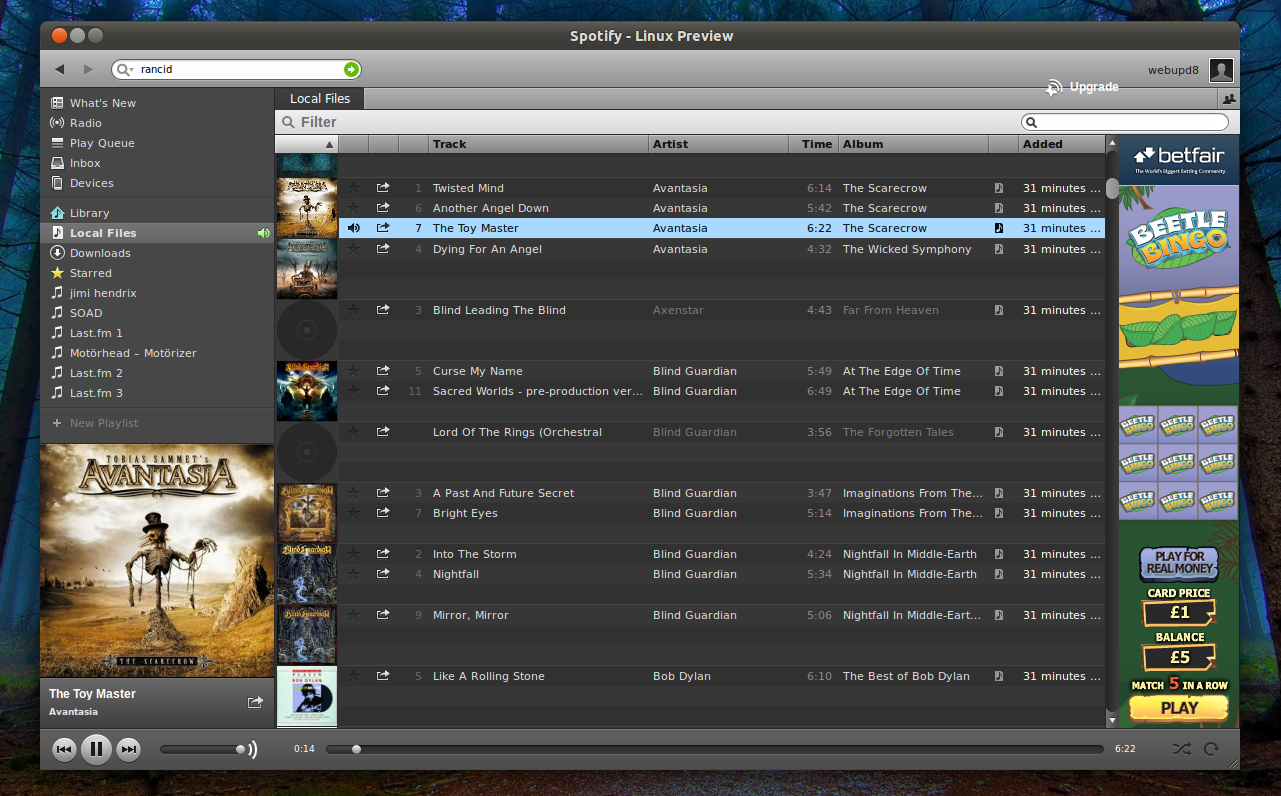
The (official) native Spotify Linux client got support for free accounts recently. Here is how to install it on Ubuntu and fix some bugs such as not being able to play local music in Ubuntu 11.10 Oneiric Ocelot.

Please note that Spotify for Linux is a preview release and is currently unsupported so you may encounter issues!


Install the native Linux Spotify client under Ubuntu


1. Add the Spotify repository (will be used to install Spotify and stay up to date with the latest Spotify versions).

Launch Software Sources using the following command:
gksu --desktop /usr/share/applications/software-properties-gtk.desktop /usr/bin/software-properties-gtk

2. Under Software Sources, switch to the "Other Software" tab, click "Add" and paste the following line:
deb http://repository.spotify.com stable non-free

Once you do this, two repository lines are actually added and the second one (for source code) will display an error when running "sudo apt-get update", so remove this line:
http://repository.spotify.com stable non-free (Source Code)

from the same "Other Software" tab in Software Sources. Once you're done, close the Software Sources window.

3. Import the Spotify repository key and install Spotify for Linux:
sudo apt-key adv --keyserver keyserver.ubuntu.com --recv-keys 4E9CFF4E
sudo apt-get update
sudo apt-get install spotify-client-qt


Spotify fixes for Ubuntu


Spotify has been installed, but if you are using Ubuntu 11.10 Oneiric Ocelot (or newer), you can't play local music, or at least some file types don't work and you'll get a sound decoder error:

"There is a problem with the sound decoder. Spotify can't play music"

This may even occur for some Spotify tracks.

To fix this, you need to install libavutil50, libavcodec52 and libavformat52 from the Ubuntu 11.04 Natty Narwhal repository. To make it easier (thanks to yugnip!), you can get all 3 from here:

Download the .debs above in a new folder, then use the terminal to navigate to it ("cd /path/to/folder") and run:
sudo dpkg -i *.deb


Another annoyance is that Spotify for Linux doesn't display any artwork in the Ubuntu Sound Menu, at least in Ubuntu 11.10. To fix this, use the command below:
mkdir -p ~/.cache/indicators/sound/album-art-cache

Unfortunately I didn't found a fix for the out of place "Upgrade" button.


via PinguyOS forum; thanks to Antoni "Pinguy" for the tip!

1 comments

» read more....

Clementine Music Player Gets Spotify And Grooveshark Support

6:18 AM

Clementine

The latest Clementine music player available in the Clementine Development PPA got some very interesting new features: you can now listen to Grooveshark or Spotify songs through Clementine. For this, you need a Spotify Premium / Grooveshark Anywhere account though.

I've only tested the Grooveshark plugin (because I don't have a Spotify Premium account) and I can tell you it works pretty well already. Also, most of the Grooveshark features can be accessed from Clementine: you can add a song to your favourites, create new playlists, add songs to a Grooveshark playlist or get a song share url. What's not yet available is listening to a Grooveshark radio station.


Clementine preferences

Other changes include: reorganization of the Preferences dialog, you can configure the quality when converting music before copying it to a device, A new "Search for anything" box above the sidebar, Unity quicklists and more.

Update: the latest Clementine also comes with an option to disable the playlist background image (under Preferences > Behavior > Enable playlist background image).


If you want to test the latest Clementine development build in Ubuntu, use the commands below (warning: the packages may be unstable!):
sudo add-apt-repository ppa:me-davidsansome/clementine-dev 
sudo apt-get update
sudo apt-get install clementine


Thanks to Olof Nord for the tip!

0 comments

» read more....