ownCloud Android App Available For Download

2:38 AM

ownCloud, the complete, open source cloud file sync tool (includes music streaming, file management which supports sharing, calendar, contacts and more) is now available for Android.

This is the first public ownCloud Android app release and it doesn't have to many features yet, but it does have the basics: browse, upload, download and delete files. The application also supports previews for videos and photos but only for those on your device (which you want to upload) and not for those available on the ownCloud server.

Further more, for now the application doesn't support non-standard ports so if you've configured your ownCloud setup to use such a port, you won't be able to use the Android app for now.

Here are a few ownCloud for Android screenshots:


ownCloud for Android isn't yet available on Google Play, but it should be posted in about 4-6 weeks and around the same time, the iOS app should also be available in the AppStore (for now there's no iOS app available for download).

Download ownCloud for Android (.apk)


More about ownCloud:

0 comments

» read more....

Download SopCast For Android (P2P App To Watch TV Channels Online)

10:51 PM

Sopcast player Android

Sopcast Player, the P2P streaming application that allows you to watch various TV channels online, is now available for Android, allowing you to watch TV on your Android smartphone or tablet.

SopCast for Android is currently in beta and doesn't support all the features the desktop application does; for instance, you can't edit the server list, manually add a TV channel or open sopcast URLs. But the default TV channel list is pretty ok for most people.


SopCast for Android lets you see the defaultTV channel list and play any TV channel available in the list, log in using your account or anonymously, change the aspect ratio and that's about it.

In my test, the application worked great on my old HTC Desire HD running Android 2.3.5. Unfortunately I couldn't test it on newer Android devices but according to it's description, it should work on any device running Android 2.2+.

Main SopCast for Android features according to its official webpage:
  • Powered by latest SopCast P2P engine, supports all SopCast P2P channel types.
  • Play local videos (supports most audio and video file types)
  • Low CPU usage
  • Memory buffering

Download SopCast for Android


SopCast for Android is not available in the Google Play Store, but you can download the .apk from one of the links below:
Sopcast android qr code


To install SopCast Player (there are 2 SopCast applications available: TV Maxe and SopCast Player) in Ubuntu, see this post: Install SopCast Player In Ubuntu 11.10 Oneiric Ocelot

* the download is very slow right now using the official download link so I've added an alternate download link.

Thanks to Linux und Ich for the news!

0 comments

» read more....

How To Dual-Boot Android-x86 And Ubuntu (With GRUB 2)

6:56 PM

Android 4.0 ice cream sandwich

Some of you have asked how to dual-boot Android-X86 4.0 ICS (which uses GRUB legacy) with Ubuntu (GRUB 2), so here's how to do it, including a video showing all the required steps as well as installing Android-X86.

It doesn't matter in which order you install Ubuntu and Android-x86 40, but if you install Android-x86 after Ubuntu, make sure you don't select to install GRUB or else you'll have to reinstall GRUB manually using a Live CD.

Notes:
  • All Android-x86 supported filesystems should work (ext2, ext3, fat32 and ntfs)
  • It may work with other Linux distributions that use GRUB 2, but I've only tested it with Ubuntu. Some parts of the instructions below may be different for other Linux distributions. Also, the Android-X86 version used in my test was 4.0 Ice Cream Sandwich RC1.

Firstly, here's a video with all the required steps to dual-boot Android-x86 4.0 and Ubuntu:


(direct video link)


How to dual-boot Android-X86 and Ubuntu


1. After you've installed both Ubuntu and Android-x86, you need to boot into Ubuntu and modify the "40_custom" GRUB script:
gksu gedit /etc/grub.d/40_custom

And at the bottom of the file, add this:
menuentry "Android-x86" {
set root='(hd0,0)'
linux /android-4.0-RC1/kernel quiet root=/dev/ram0 androidboot.hardware=eeepc acpi_sleep=s3_bios,s3_mode SRC=/android-4.0-RC1 SDCARD=/data/sdcard.img
initrd /android-4.0-RC1/initrd.img}

There are some changes you'll need to make to the above menu entry (code above):
  • If you didn't create an sdcard image, remove the "SDCARD=/data/sdcard.img" part from the 3rd line (make sure you don't remove anything else!)
  • The above menu entry uses "eeepc" for androidboot.hardware, but you can replace it with your hardware, depending on the ISO you've downloaded (use "asus_laptop" for the ASUS Laptop ISO, etc.) or use "generic_x86".
  • If you haven't installed Android-x86 4.0 RC1 but some other version, replace the lines containing "android-4.0-RC1" with your version.
  • For Android-x86 versions older than 4.0, use "androidboot_hardware" instead of "androidboot.hardware"

But the most important thing you need to change in the menuentry is the partition on which you've installed Android-x86, "(hd0,0)" in my example. If you don't know on which partition you've installed it, run the following command in a terminal:
sudo fdisk -l

In the video above, I've installed Android-x86 on "sda6", so I've replaced "(hd0,0)" with "(hd0,6)" - hd0 means the first hard disk ("sda") and "6" is the partition and comes from "sda6".

Hard disk naming starts with 0 so basically, sda is "hd0", sdb is "hd1" and so on. Counting partitions doesn't start with 0, so if you've installed Android x86 on let's say "sda5", you'd use "(hd0,5).

Once you make these changes, save the file.

2. Now let's make the file executable and update GRUB 2:
sudo chmod +x /etc/grub.d/40_custom
sudo update-grub

3. That's pretty much it. Now you can restart your laptop/netbook and while it boots, press and hold the SHIFT key (before GRUB loads) or else the GRUB menu won't be displayed. Here, select if you want to boot Ubuntu or Android-x86 (or whatever other operating systems you may have).

If you want the GRUB menu to show up on every boot, you can tweak it using a tool such as Grub Customizer or Startup Manager.


Reference: Grub 2 Basics; thanks to xshaneyx's comments.

0 comments

» read more....

USB Stick PC `Cotton Candy` Available For Pre-Order

7:07 PM


Cotton Candy, a computer that looks like an USB thumb drive which runs Android 4.0 Ice Cream Sandwich or Ubuntu for ARM is now available for pre-order at a price of $199 plus tax and shipping (the delivery is expected in March). It's a lot more expensive than Raspberry Pi, but it also has better hardware as well as Wifi and Bluetooth:
  • Dual Core ARM Cortex A9@1.2GHz CPU
  • Quad Core ARM Mali-400MP Graphics Processing Unit
  • 1GB DRAM
  • Up to 64GB memory local storage (microSD)
  • 480p/720p/1080p decode of MPEG4-SP/H.263/H.264 AVC/MPEG-2/VC1
  • USB 2.0 male connector for power and connection to devices that supports USB mass storage
  • MicroUSB
  • HDMI 1.3 Connector with audio
  • Wifi 802.11b/g/n
  • Bluetooth 2.1 + EDR

Cotton Candy can run either as a completely functional computer when connected to a monitor or you can plug it into a computer and run it inside your current OS thanks to a virtualization client embedded in the device.


You can pre-order Cotton Candy @ store.cstick.com

0 comments

» read more....

Android-x86 4.0 RC1 Released (Android Ice Cream Sandwich Optimized For Netbooks / Laptops)

2:56 AM

android x86 4.0 ice cream sandwich

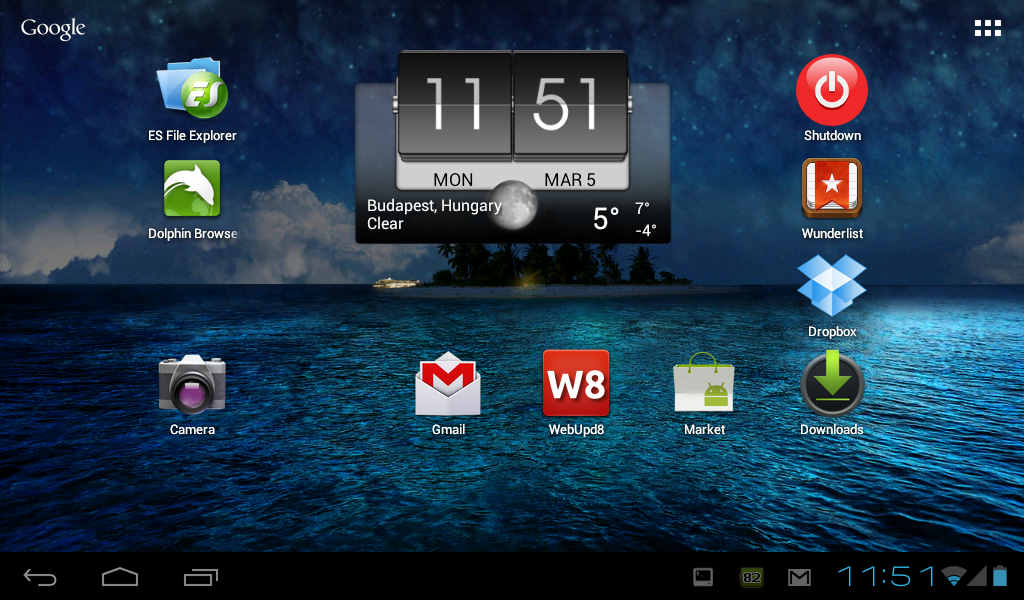
Android-x86 is a project that provides Android support for x86, making it easy to install it on netbooks or laptops. You can use it like any other Android 4.0 Ice Cream Sandwich device: install applications from the Android Market, add widgets and so on.

The Android x86 team has released Android x86 4.0 RC1, based on Android 4.0.3 (Ice Cream Sandwich) and features:
  • Support Multi-touch, Wifi, Audio, Bluetooth, G-sensor and Camera.
  • OpenGL hardware acceleration for AMD Radeon and Intel chipsets
  • Kernel 3.0.8 with KMS enabled - most netbooks can run Android-x86 in the native resolution.
  • V8 javascript engine
  • Simulate sdcard by internal storage
  • External usb drive and sdcard are auto mounted to /mnt/USB on plugging
  • Experimental support of Renderscript
  • A text based GUI installer which supports ext3/ext2/ntfs/fat32 filesystems
  • Hybrid ISO (you can dump the iso into a usb drive using "dd if=android-x86-4.0-xxx.iso of=/dev/sdX")

In my test Android x86 4.0 worked great on my  Asus EeePC: the camera, Wifi and so on are supported out of the box. The only issue I've had was related to suspend/sleep: I was unable to unlock the screen, but at least in my case, there was a fix (see under tips below). Also, applications compiled for ARM like Chrome, Firefox or Netflix and others don't work (they don't even show up in the Market) unless you recompile them.

If you don't have a netbook or laptop to test it and you want to give it a try in VirtualBox, unfortunately the ethernet won't work for now. You can, of course, test it in VirtualBox without an Internet connection - simply download the EeePC version, create a new VirtualBox machine and run it.

Update: for a custom ISO with a patch that adds ethernet support, see THIS post (thanks to Paweł Lesiecki!) but please note that this build doesn't have the Android Market installed by default (and comes with some other customizations). Since this not an official Android-x86 ISO, use it at your own risk!

A few Android-x86 4.0 (ICS) tips:
  • When using it in VirtualBox, but make sure you select "Disable Mouse Integration" (under the "Machine" menu) to get the mouse to work once you boot the Android x86 4.0 Live ISO
  • Disable screen autorotate from the Android-x86 settings, or else some application might rotate it for you (and that's quite annoying if your device doesn't support it)
  • If you can't unlock the screen, try to use the built-in wake-up keyboard shortcut if available (Fn + F1 for my Asus EeePC), then use the mouse to slide the keyguard
  • For shutdown / power off, you can use an application such as Shutdown.


Android x86-4.0 RC1 screenshots


Here are a few screenshots from my Asus EeePC running Android-x86 4.0 RC1:

android x86 4.0 screenshot

android x86 4.0 screenshot


android x86 4.0 screenshot

android x86 4.0 screenshot

android x86 4.0 screenshot

android x86 4.0 screenshot

android x86 4.0 screenshot


Download Android x86 4.0


Android-x86 4.0 has been tested / it should work on AMD Brazos (MSI 110W), Asus EeePC or some Asus laptops/tablets and Tegav2 / Viewpad 10. These are the officially supported devices, but Android-x86 should work on others too. An old list of supported devices / hardware can be found HERE.

Download Android-x86 4.0 RC1 Live CD ISO.

To use it, write the ISO on an USB stick using Unetbootin, Linux Live USB Creator (LiLi) or using the command line (example: "dd if=android-x86-4.0-RC1-eeepc.iso of=/dev/sdX", where "sdaX" is your USB drive). For more info, see the Android-x86 installation page or see here: 4 Ways to Create Bootable Live USB Drives (For Windows, Linux and Mac OS X).

Update: also see -> How To Dual-Boot Android-x86 And Ubuntu (With GRUB 2)

news via lffl.org

0 comments

» read more....

More Information About Ubuntu For Android [Video]

5:44 AM

Ubuntu for Android

Some more information regarding Ubuntu for Android was revealed today in an interview with one of the Canonical engineers by Engadget.

For instance, the interview divulged the prototype we saw in the previous Ubuntu for Android video: TI OMAP 4430-powered Motorola Atrix 2, without any modifications. Even though the device seemed to run everything smoothly, it had some issues with multi-tasking but better performance will come since a lot of new devices with better hardware should be released this year.

Canonical will be attending the Mobile World Congress next week where they will try to convince manufactures to use their new product as soon as this year. That's because even though most mobile devices that will be launched this year are probably already in production, they won't need any modifications to run Ubuntu for Android, so we'll hopefully have Ubuntu for Android sometime soon.

In the interview, it was also revealed that Ubuntu for Android will be offered pre-installed by manufacturers and won't be available to download for regular users for now.

You can watch the video below:


(Direct video link)


0 comments

» read more....

Ubuntu For Android, Announced By Mark Shuttleworth

12:34 AM


Mark Shuttleworth has announced "Ubuntu for Android", which brings Ubuntu to multi core Android phones.

Ubuntu for Android is a phone but also your own portable computer that you can plug in to any monitor to get a fully featured desktop:

Carry just the phone, and connect it to any monitor to get a full Ubuntu desktop with all the native apps you want, running on the same device at the same time as Android. Magic. Everything important is shared across the desktop and the phone in real time.

And it's not just a computer, Ubuntu TV is integrated into Ubuntu for Android so when you connect it to a TV, you don't get the Ubuntu desktop interface but the Ubuntu TV interface.


Ubuntu for Android will use Unity, along with applications (or web apps) you're already familiar with, like: Chromium, Google Calendar, Google Docs, Thunderbird, Gwibber, VLC, PiTiVi, "Ubuntu Music Player" (looks like Rhythmbox) or Ubuntu Photo Gallery (Shotwell). This is possible because Ubuntu and Android will share the same kernel.

Contacts, photos, music etc., will be available on both the phone and the desktop interface.


ubuntu for android

ubuntu for android

Ubuntu for Android will work on Android 2.3 (Gingerbread) or newer and will require the following hardware:
  • Dual-core 1GHz CPU
  • Video acceleration: shared kernel driver with associated X driver; Open GL, ES/EGL
  • torage: 2GB for OS disk image
  • HDMI: video out with secondary frame buffer device
  • USB host mode
  • 512 MB RAM

Mark Shuttleworth also says that this isn't the Ubuntu Phone (which is still in the pipeline).

Ubuntu for Android will be demoed at the Mobile World Congress next week. For more information, see Mark's post and the official Ubuntu for Android page.

Update: check out this Ubuntu for Android video.

Update 2: Ubuntu for Android will be offered pre-installed by manufacturers and won't be available to download for regular users for now


screenshots via Ubuntu for Android and Extremetech

0 comments

» read more....

Dropbox: Get Read / Write EncFS Support On Android Using Cryptonite

6:12 PM

Dropbox is very popular - and for a good reason - it's fast, you get free storage space which can easily be increased, there are many additional tools that make use of Dropbox and so on, but unfortunately it doesn't encrypt the data on your computer. This is why, a while back I was suggesting to encrypt private Dropbox data using EncFS.

But what if you want to access an encrypted folder from an Android device? You can use BoxCryptor, but it has some limitations: the free version has read-only access so you can't upload / modify files, only the first two encrypted folder levels are accessible (deeper folders can't be accessed) and has limited EncFS support (you have to use custom EncFS settings to be able to use it).

Well, a new Android application has been released recently, solving all these issues: Cryptonite EncFS.

cryptonite encfs

Cryptonite EncFS is still in alpha, but it can already read / write on existing Dropbox EncFS volumes (the upload feature is experimental, but it worked just fine in my test) and has full EncFS support, so there's no need for special EncFS configuration. Oh, and it's free software.

Further more, on rooted phones that support FUSE, like CyanogenMod, Cryptonite can also mount EncFS volumes (root is not required for using Cryptonite EncFS with Dropbox).

The application is very easy to use: you click a button to link your Dropbox account and then you can decrypt and browse EncFS folders in your Dropbox. Cryptonite then lets you export or directly open the encrypted files you select and you can also upload files to your Dropbox EncFS folder(s):

cryptonite encfs android
Browsing an EncFS volume on Dropbox

cryptonite encfs
You can directly open or export files in EncFS volumes


Download Cryptonite EncFS:


For source code or bug reports, see the Cryptonite EncFS Google Code page.

0 comments

» read more....

pyLoad: Lightweight Download Manager For One-Click Hosters

7:06 PM

pyLoad is a lightweight, cross-platform download manager for one-click file hosting websites such as RapidShare, MegaUpload and many others as well simple http/ftp links.

Among its most important features are captcha recognition, automatic archive extraction and reconnect (useful for most file sharing websites: pyLoad disconnects your Internet connection and then reconnects so you get a new IP so you can continue downloading, bypassing limits imposed by various websites).


pyLoad comes with a web interface, command line interface, a Qt GUI, an Android client and is even available for routers. The GUI is not yet stable, so I recommend using the web or command line clients for now.

pyload GUI
pyLoad Qt GUI
pyload download managerweb interface
pyLoad web interface


pyLoad is a great alternative for jDownloader (which is probably the best feature-wise, but uses a LOT of system resources) and it supports downloading from one-click hosters such as: Rapidshare.com, Netload.in, Uploaded.to, Hotfile.com, Fileserv.com, DepositFiles, Filesonic, yourfiles.to, 4shared.com, Youtube, Myvideo and more.


Here are some more pyLoad screenshots:

pyload
pyLoad - accounts

pyload
pyLoad settings
pyload
pyLoad Android UI


Configure pyLoad


Once installed, launch pyLoad Download Manager (not pyLoad GUI) - the first time you run it you'll have to configure it:


Here' you'll be asked to select the language, enter a new username and password, enable/disable remote access, set the downloads folder and more. To use the default value, simply hit ENTER for each config option. For the downloads folder, don't select the default value or else it will be set to ~/.pyload/Downloads, so instead, enter something like /home/YOURUSERNAME/Downloads.

When you're done with the configuration, run pyLoad Download Manager and open the web interface: http://localhost:8000 (unless you've changed the address/port). You can also run pyLoad GUI from the menu, but like I was telling you above, the GUI is not yet stable and there are some missing features.


If later on you want to change the password, run: "pyLoadCore -u" (if pyLoad has been installed; if you're running it from its folder, use "python pyLoadCore.py -u" instead.

To see the commands available for the command line client, run: "pyLoadCli -c" (or "python pyLoadCli.py -c" if you're running pyLoad from its own folder).

If you want to start the first time configuration process again, run "pyLoadCore -s" (or "python pyLoadCore.py -s").


Download pyLoad


Download pyLoad - files available for Ubuntu / Debian, ArchLinux, router or NAS with IPKG installed, Android or Windows as well as source files.


via LFFL.org (thanks!)

0 comments

» read more....

AirDroid: Manage Your Android Device Using A Browser

9:14 AM


AirDroid is a free application that lets you control your Android device from your desktop, tablet or anything else that can run a browser. All you have to do to use it is start the application on your Android device, then open a web browser on your computer and enter the url and password displayed by AirDroid.

The application can be used to read and quickly send messages, browse / download / upload files, preview photos, import or export ringtones, music and lots more.


Probably the best feature for me is being able to quickly send and read messages, replacing AndroidPC which I've used until now. It even displays notifications for new messages, but only in the browser window which isn't exactly useful if the window is minimized so a better way to notify about new messages would be nice (some Chrome extension could do that maybe?). But of course, you can use Android Notifier for that (work on Linux too). 


I also like that it basically integrates multiple apps into one so you don't need a different application to transfer files via WiFi (it automatically creates zip archives when downloading multiple files or folders), to backup your Android apps (which downloads the apk) on your computer, share the clipboard and others.

AirDroid currently only works if the computer and Android device are connected to the same WiFi network. If you don't have a WiFi network however, you can connect them via USB tethering or hotspot mode.


AirDroid features:
  • File management: transfer files between your computer and Android devices, cut, copy, paste, search, rename and delete files on SD card
  • SMS management: send, read, delete SMS messages
  • Photos: preview, set as wallpaper, slideshow, import/export
  • Share clipboard between desktop and your Android device
  • Applications: install, uninstall, backup (downloads .apk files), search
  • Contacts management: create contacts, search, check call logs
  • Ringtones: import from computer, export, preview, customize ringtones for phone calls, notifications and alarms
  • Music: import from computer, export, play, etc.


Some will probably say that Remote Web Desktop is better and indeed, RWD has some extra features like webcam or 3G support, but the AirDroid interface is better in my opinion: it's a lot easier to use as well as better looking. Also, in my test, the image previews loaded a lot faster using AirDroid. By the way, if you've tried both applications, let us know what you think in the comments!


Download AirDroid: Android Market web link or use:


app via Ubuntips

0 comments

» read more....

SparkleShare Finally Available For Android

6:19 PM

Sparkleshare is an open source tool to synchronize your files in the cloud that supports GitHub, Gitorious or your own private GIT server.

SparkleShare finally got an Android application that allows you to connect to your SparkleShare server. For now, the application can only be used to browsing/downloading files:

SparkleShare Android

SparkleShare

To be able to connect SparkleShare for Android with your SparkleShare server, you need to set up SparkleShare Dashboard, a web interface for SparkleShare. Instructions on getting SparkleShare Dashboard to run can be found HERE.

Note for Ubuntu users: SparkleShare Dashboard requires nodejs >= 4 so if you use an Ubuntu version older than Oneiric, use THIS PPA to install nodejs.

Once you've installed SparkleShare Dashboard, linking your device is very easy and all you must do is scan a QR code generated by SparkleShare Dashboard.


Download SparkleShare for Android (Market link) | SparkleShare homepage

0 comments

» read more....

Dropbox: Access EncFS Folders On Android Using BoxCryptor

4:40 AM

A while back we wrote about encrypting your private Dropbox data using EncFS. And that's a really great way to keep your private Dropbox data safe, but what if you want to access some encrypted files from an Android device?

That's where BoxCryptor comes in. The first public BoxCryptor version for Android was released a few days ago so you can finally access EncFS folders in your Dropbox from any Android device (there's also a BoxCryptor version for Windows and an iPhone / iPad app is currently under development). The application is currently in alpha and for now it can only read encrypted files, but according to it's Android Market page, write support will be added in a later version.


BoxCryptor is great, but there are a few quirks. Firstly, BoxCryptor doesn't have full EncFS support so you have to disable some of the default EncFS options to be able to use it (instructions available in the second part of this post). And secondly, in our Dropbox EncFS post, we wrote about excluding the encryption key from getting synced. Well, to be able to use BoxCryptor, you must sync the EncFS key too.

Also, the Windows version of BoxCryptor is free for an encrypted directory with a maximum size of 2GB and you must pay for more. There's nothing about this on the BoxCryptor Android Market page so I assume it's completely free for Android, but I'm not sure, so if you have a large ( >2GB) encrypted directory, let us know if BoxCryptor for Android works for you!

But this is the first public release so hopefully BoxCryptor will get full EncFS support by the time it reaches a stable status.  Oh, and BoxCryptor does offer an extra layer of security: you can set a PIN for unlocking the application.


Here are a few BoxCryptor screenshots:


- The first time you run it, you must select your encrypted folder (".encrypted" in my case):

BoxCryptor android screenshot


- Once you select a folder and enter your EncFS password, you can easily open any files available in that folder:

EncFS Boxcryptor android


BoxCryptor options:

Boxcryptor android options


How to set up EncFS to work with BoxCryptor


To create an EncFS folder under Linux that is supported by BoxCryptor, follow the instructions in our Encrypt Your Private Dropbox Data With EncFS post, but after running the command in step 2, enter "x" for expert configuration mode and set the following options like below:


The following filename encoding algorithms are available:
1. Block : Block encoding, hides file name size somewhat
2. Null : No encryption of filenames
3. Stream : Stream encoding, keeps filenames as short as possible

--> enter "3".

Enable filename initialization vector chaining?
--> enter "no"

Enable per-file initialization vectors?
--> enter "no"

Enable block authentication code headers on every block in a file?
--> enter "no"

Add random bytes to each block header?
--> enter "0"


And finally, skip the last step in our previous post which excludes the EncFS key from being synced.


Download BoxCryptor for Android:

Boxcryptor android


Or use this direct Android Market link.

0 comments

» read more....

Android App To Send And Receive Text Messages Via Gmail Or GTalk: DesktopSMS

7:46 PM

DesktopSMS is an Android application that forwards SMS messages from your phone to GMail or Google Talk. You can even reply to these text messages, either using Gmail or using your favourite IM client (it needs to support Google Talk).

DesktopSMS


While replying to text messages via Gmail is as easy as replying to an email, using DesktopSMS with Google Talk makes it a bit annoying because you have to add each contact that texts you to your Gtalk. Also, when someone sends an SMS for the first time, Google Talk displays a pop-up to add that person as a friend, but the initial SMS is not displayed.


DesktopSMS was created by the ROM Manger developer and is currently in beta. In my initial test, there was a delay when replying to text messages via Gmail, but this didn't happen in a later test. Still, this is currently in beta so you may encounter delays or other bugs, so use DesktopSMS at your own risk.


Download DesktopSMS


Thanks to Matt for the tip!

0 comments

» read more....

"Ubuntu One Files": Free Ubuntu One App For Android

2:26 AM

Canonical has just released a free Ubuntu One application for Android devices.

The application is called "Ubuntu One Files" and it not only lets you access your Ubuntu One files but it also lets you instantly upload any photos you take to your Ubuntu One account. In fact, the first time you run it, a pop-up screen will ask you if you want to automatically upload existing photos or future photos to Ubuntu One:

Ubuntu One Android


The application also lets you upload new files and create new folders, rename, delete or publish your files. You can also share your files on Facebook, Twitter, Flickr and so on. For this, simply tap and hold on a file and the options window should pop up:

Ubuntu One Files Android App

Ubuntu One Android app


By default, Ubuntu One File lists all your existing Ubuntu One files but it doesn't automatically download them. To download them on your device you must click the files:

Ubuntu One Android


Installation


Ubuntu One Files is open source so if you want to check out the code, see its Launchpad page.

To install it, visit Ubuntu One Files on the Android Market or use the QR code below:

Ubuntu One Android install

Since this is the first public release, expect to find bugs. You can report them @ Launchpad.


Note: in my test, authenticating with Ubuntu One through Opera failed so you may want to try this using a different browser (the stock browser worked just fine) - at least that was the case on my HTC Desire HD on which I've tested it.

0 comments

» read more....