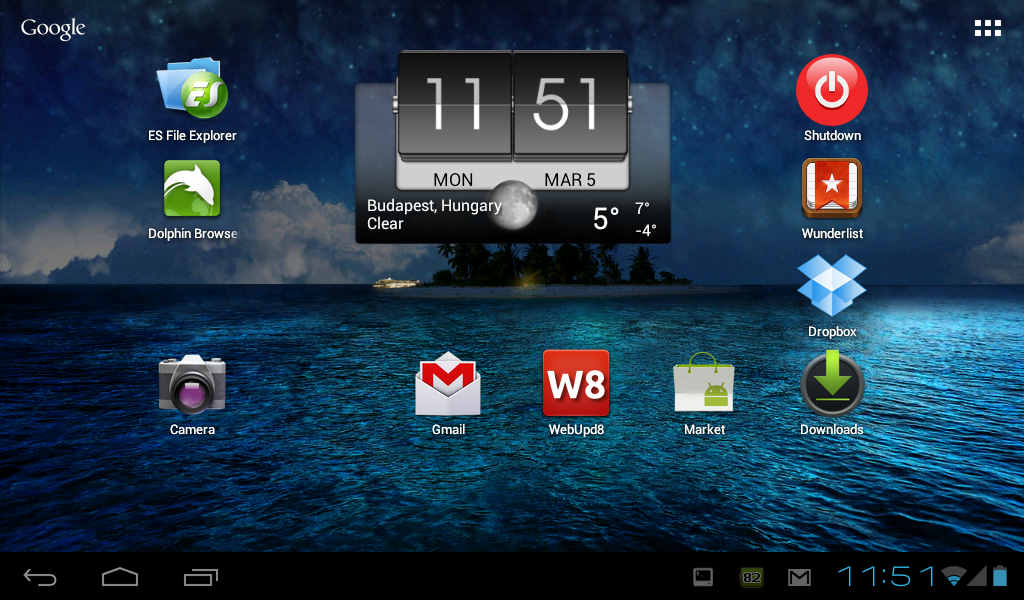
Some of you have asked how to dual-boot Android-X86 4.0 ICS (which uses GRUB legacy) with Ubuntu (GRUB 2), so here's how to do it, including a video showing all the required steps as well as installing Android-X86.
It doesn't matter in which order you install Ubuntu and Android-x86 40, but if you install Android-x86 after Ubuntu, make sure you don't select to install GRUB or else you'll have to reinstall GRUB manually using a Live CD.
Notes:
- All Android-x86 supported filesystems should work (ext2, ext3, fat32 and ntfs)
- It may work with other Linux distributions that use GRUB 2, but I've only tested it with Ubuntu. Some parts of the instructions below may be different for other Linux distributions. Also, the Android-X86 version used in my test was 4.0 Ice Cream Sandwich RC1.
Firstly, here's a video with all the required steps to dual-boot Android-x86 4.0 and Ubuntu:
(direct video link)
How to dual-boot Android-X86 and Ubuntu
1. After you've installed both Ubuntu and Android-x86, you need to boot into Ubuntu and modify the "40_custom" GRUB script:
gksu gedit /etc/grub.d/40_customAnd at the bottom of the file, add this:
menuentry "Android-x86" {
set root='(hd0,0)'
linux /android-4.0-RC1/kernel quiet root=/dev/ram0 androidboot.hardware=eeepc acpi_sleep=s3_bios,s3_mode SRC=/android-4.0-RC1 SDCARD=/data/sdcard.img
initrd /android-4.0-RC1/initrd.img}
There are some changes you'll need to make to the above menu entry (code above):
- If you didn't create an sdcard image, remove the "SDCARD=/data/sdcard.img" part from the 3rd line (make sure you don't remove anything else!)
- The above menu entry uses "eeepc" for androidboot.hardware, but you can replace it with your hardware, depending on the ISO you've downloaded (use "asus_laptop" for the ASUS Laptop ISO, etc.) or use "generic_x86".
- If you haven't installed Android-x86 4.0 RC1 but some other version, replace the lines containing "android-4.0-RC1" with your version.
- For Android-x86 versions older than 4.0, use "androidboot_hardware" instead of "androidboot.hardware"
But the most important thing you need to change in the menuentry is the partition on which you've installed Android-x86, "(hd0,0)" in my example. If you don't know on which partition you've installed it, run the following command in a terminal:
sudo fdisk -lIn the video above, I've installed Android-x86 on "sda6", so I've replaced "(hd0,0)" with "(hd0,6)" - hd0 means the first hard disk ("sda") and "6" is the partition and comes from "sda6".
Hard disk naming starts with 0 so basically, sda is "hd0", sdb is "hd1" and so on. Counting partitions doesn't start with 0, so if you've installed Android x86 on let's say "sda5", you'd use "(hd0,5).
Once you make these changes, save the file.
2. Now let's make the file executable and update GRUB 2:
sudo chmod +x /etc/grub.d/40_custom
sudo update-grub
3. That's pretty much it. Now you can restart your laptop/netbook and while it boots, press and hold the SHIFT key (before GRUB loads) or else the GRUB menu won't be displayed. Here, select if you want to boot Ubuntu or Android-x86 (or whatever other operating systems you may have).
If you want the GRUB menu to show up on every boot, you can tweak it using a tool such as Grub Customizer or Startup Manager.
Reference: Grub 2 Basics; thanks to xshaneyx's comments.
» read more....


