Install JDownloader 2 Pre-Beta In Ubuntu

6:28 PM

jdownloader 2

JDownloader is a free, open source download manager which makes it easy to download files from one-click hosting sites (supports more than 110 services) including using premium accounts, support for downloading from YouTube, Vimeo and other such websites, it allows parallel downloads, automatic CAPTCHAs, automatic archive extraction, automatically acquire a new IP (if your router is supported) and more.

JDownloader 2 pre-beta is available for download. The new version brings a reworked user interface, simplified settings, new options for some of the available plugins and more. The JDownloader Google+ page also says there are "many new features and improvements under the hood" but unfortunately, there's no official changelog for the latest JDownloader 2.

Since this is a pre-beta release, not everything works yet: for instance, JDownloader Unity integration doesn't work with this version for now!

jdownloader 2 ubuntu
JDownloader 2 pre beta settings


Install JDownloader 2 pre beta in Ubuntu


The steps below are for Ubuntu users, but they also work for other Linux distributions. Using the JDownloader PPA (first step) in Ubuntu will install a .desktop file so JDownloader shows up properly in Dash / menu along with some other tweaks. For other Linux distributions, you can create your own .desktop file for JDownloader and for the "Exec" filed, use "java -jar ~/.jdownloader/JDownloader.jar" (you can use a different JDownloader folder if you want).


1. Install JDownloader from it's PPA.

2. Download JDownloader 2 beta updater

3. Extract the downloaded JDownloader archive in your home folder, then navigate to the "Updater" directory, right click the "Updater.jar" file and select "Open with OpenJRE runtime" (instead of OpenJRE, it can be OpenJDK or Oracle Java, etc.). If this menu entry doesn't show up when right clicking the Updater.jar file, open a terminal and copy/paste the following command:
java -jar ~/Updater/Updater.jar

The JDownloader updater should now open and start downloading the latest JDownloader 2 beta. Don't start JDownloader yet.

If running the above command doesn't work, make sure you have OpenJRE/JDK or Oracle Java installed.

4. If you want to keep your old JDownloader settings, see THIS comment (and skip the first command below).

Now let's copy JDownloader 2 beta to ~/.jdownloader (that's where the JDownloader files are copied when installing JDownloader from the PPA):
rm -rf ~/.jdownloader
cp -r ~/Updater ~/.jdownloader

Now you can start JDownloader 2 pre beta from the menu / dash.


Revert to the stable JDownloader build


To go back to the stable JDownloader version in Ubuntu, remove the JDownloader 2 files using the following command:
rm -r ~/.jdownloader

And now simply start JDownloader from the menu / Dash. The JDownloader updater should start (if you've installed JDownloader from the PPA like we've recommended) and automatically download the latest stable JDownloader version.


via JDownloader @ Google+

0 comments

» read more....

pyLoad: Lightweight Download Manager For One-Click Hosters

7:06 PM

pyLoad is a lightweight, cross-platform download manager for one-click file hosting websites such as RapidShare, MegaUpload and many others as well simple http/ftp links.

Among its most important features are captcha recognition, automatic archive extraction and reconnect (useful for most file sharing websites: pyLoad disconnects your Internet connection and then reconnects so you get a new IP so you can continue downloading, bypassing limits imposed by various websites).


pyLoad comes with a web interface, command line interface, a Qt GUI, an Android client and is even available for routers. The GUI is not yet stable, so I recommend using the web or command line clients for now.

pyload GUI
pyLoad Qt GUI
pyload download managerweb interface
pyLoad web interface


pyLoad is a great alternative for jDownloader (which is probably the best feature-wise, but uses a LOT of system resources) and it supports downloading from one-click hosters such as: Rapidshare.com, Netload.in, Uploaded.to, Hotfile.com, Fileserv.com, DepositFiles, Filesonic, yourfiles.to, 4shared.com, Youtube, Myvideo and more.


Here are some more pyLoad screenshots:

pyload
pyLoad - accounts

pyload
pyLoad settings
pyload
pyLoad Android UI


Configure pyLoad


Once installed, launch pyLoad Download Manager (not pyLoad GUI) - the first time you run it you'll have to configure it:


Here' you'll be asked to select the language, enter a new username and password, enable/disable remote access, set the downloads folder and more. To use the default value, simply hit ENTER for each config option. For the downloads folder, don't select the default value or else it will be set to ~/.pyload/Downloads, so instead, enter something like /home/YOURUSERNAME/Downloads.

When you're done with the configuration, run pyLoad Download Manager and open the web interface: http://localhost:8000 (unless you've changed the address/port). You can also run pyLoad GUI from the menu, but like I was telling you above, the GUI is not yet stable and there are some missing features.


If later on you want to change the password, run: "pyLoadCore -u" (if pyLoad has been installed; if you're running it from its folder, use "python pyLoadCore.py -u" instead.

To see the commands available for the command line client, run: "pyLoadCli -c" (or "python pyLoadCli.py -c" if you're running pyLoad from its own folder).

If you want to start the first time configuration process again, run "pyLoadCore -s" (or "python pyLoadCore.py -s").


Download pyLoad


Download pyLoad - files available for Ubuntu / Debian, ArchLinux, router or NAS with IPKG installed, Android or Windows as well as source files.


via LFFL.org (thanks!)

0 comments

» read more....

JDownloader Unity Integration (Speed Counter, Progress Bar And Quicklists)

4:40 AM


JDownloader is a cross-platform download tool which supports most popular file sharing websites and comes with captcha recognition, multi-part downloads, tweak wait times, auto-reconnect, scheduler, automatic file extraction and more.

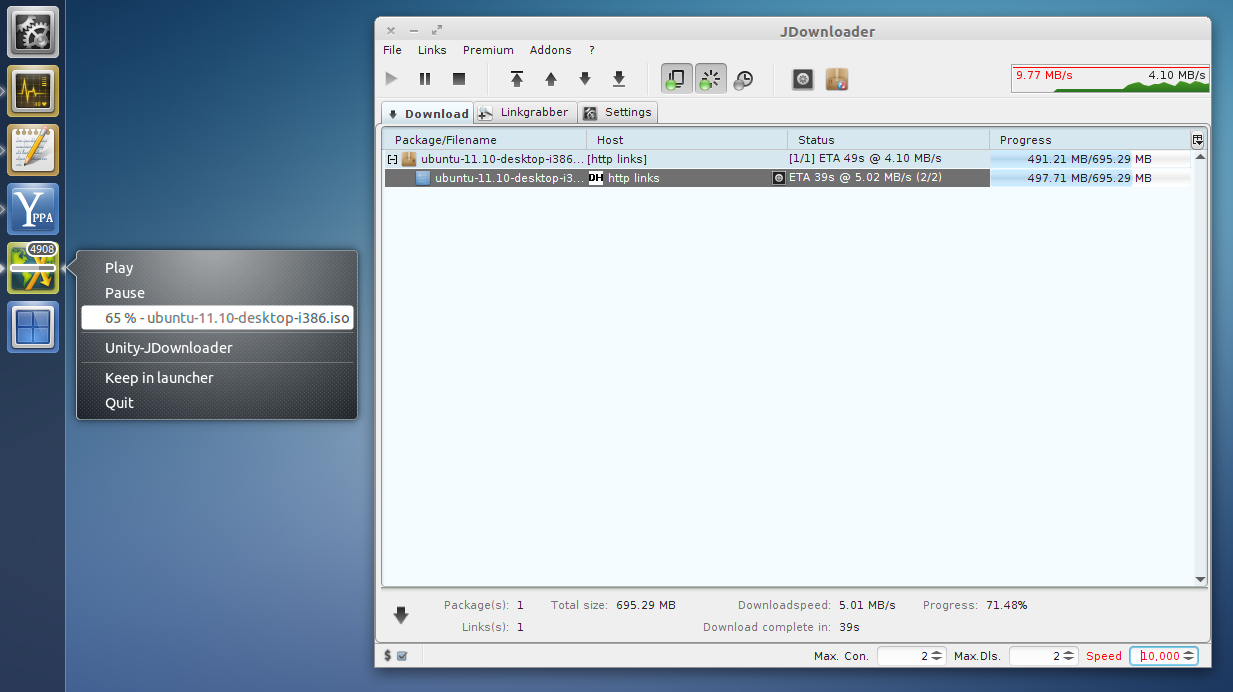
To integrate JDownloader with Unity, you can use a package called Unity-JDownloader which adds quicklists, a speed counter (Unity badge), progress bars as well as notifications for completed downloads.


To install Unity-JDownloader in Ubuntu 12.04, 11.10 or 11.04, use the commands below:
sudo add-apt-repository ppa:narfss/proyectobs
sudo apt-get update
sudo apt-get install unity-jdownloader

Obviously, you'll also need JDownloader - if you haven't installed it already, see Install JDownloader Via PPA Repository.


To get Unity-JDownloader to work, you'll have to enable the JDownloader Remote Control plugin (in the JDownloader settings, enable "JD Remote Control" under "Extensions"):


Then close JDownloader. And from now on, start "Unity-JDownloader" from Dash instead of JDownloader.


More info (in Spanish) @ proyectobs.com.

0 comments

» read more....