Wallch: Wallpaper Changer For GNOME 3 / Unity

4:51 PM


Wallch is an automatic wallpaper changer that works with GNOME 3 (and Unity). It features desktop/sound notifications, random image and time changing, live earth wallpaper (a 'live' picture of the earth updated every half hour), taking screenshots or webcam image.

The application also comes with Unity launcher support, so you can start or stop Wallch, select the next or previous wallpaper or start the live earth wallpaper from the Unity launcher:


Recently, the application got a new feature to automatically use a picture from Wikipedia of the day as wallpaper, as well as folder monitor and a redesigned UI. You also have an option to save the current picture of the day for later use.


To activate the picture of the day wallpaper or live earth wallpaper, firstly make sure the regular wallpaper changer is stopped (if started, click "Stop" in the main Wallch UI), then select Edit > Extras and you'll find a button to activate the live earth wallpaper or picture of the day. Here, you'll also find the folder monitor which adds any images you copy to a given folder to the Wallch wallpaper list.

Wallch live earth wallpaper


Install Wallch wallpaper changer in Ubuntu


The latest Wallch 3.0 is available in the Ubuntu 12.04 LTS repositories so to install Wallch, click the button below:


Or run the following command in a terminal:
sudo apt-get install wallch

Wallch is also available for Ubuntu 11.10 Oneiric Ocelot, but it's an older version. To add the Wallch PPA and install it in Ubuntu 11.10, use the commands below:
sudo add-apt-repository ppa:wallch/wallch-ppa
sudo apt-get update
sudo apt-get install wallch

For other Linux distributions, you can download the Wallch source from HERE.


thanks to Leon Vs for the tip!

0 comments

» read more....

Linux Mint Debian Update Pack 4 On The Way; To Bring Cinnamon, GNOME Shell And MATE

5:49 PM

Linux Mint Debian (LMDE) is a rolling release distribution based on Debian Testing. 

LMDE Update Pack 4, which will include Linux Kernel 3.2, Mate Desktop 1.2 (a renamed GNOME 2 desktop), Cinnamon 1.4 (GNOME Shell fork), GNOME Shell 3.2.2, KDE 4.7.4 and Xfce 4.8, "is being prepared and tested at the moment" and should be available soon.

In a comment, Clement Lefebvre, the Linux Mint Project Leader, has specified that a new respin of LMDE ISOs will be available too when Update Pack 4 will be released. He also stated that it hasn't been decided yet if MATE or Cinnamon will be made default and if they will both be on the ISO, but "both will be fully supported".

If you don't like any of the desktop environments available with LMDE Update Pack 4, you'll be able to avoid the update, keeping GNOME 2, by changing the software sources as explained on the Linux Mint blog.


Install Linux Mint Debian Update Pack 4 (testing only!)


LMDE Update Pack 4 can already be tested: download LMDE from HERE, then install Update Pack 3 using the Update Manager and then, to install Update Pack 4, you'll need to add the Linux Mint Debian testing repositories - to do this, run the following command in a terminal:
gksu gedit /etc/apt/sources.list

And replace the contents of this file with the following repositories:
deb http://packages.linuxmint.com/ debian main upstream import
deb http://debian.linuxmint.com/incoming testing main contrib non-free
deb http://debian.linuxmint.com/incoming/security testing/updates main contrib non-free
deb http://debian.linuxmint.com/incoming/multimedia testing main non-free

linux mint debian update pack 4


Then open the Linux Mint Update Manager, click "Refresh" so the software sources are updated and LMDE Update Pack 4 should be available for installation.

After the upgrade, only the GNOME Shell and GNOME Fallback sessions will be available:


lmde gnome shell
LMDE - GNOME Shell


To install Cinnamon, use the following command:
sudo apt-get install cinnamon

lmde cinnamon
Cinnamon


To install MATE, use:
sudo apt-get install mate-desktop-environment

lmde - mate
MATE

Then log out and select MATE / Cinnamon from the GDM login screen.


0 comments

» read more....

SyncWall: Wallpaper Changer With Multi-Monitor And Synchronization Support

9:21 PM

Syncwall

SyncWall is a cross-platform wallpaper change written in Qt which supports multiple monitors and wallpaper synchronization between workstations.

SyncWall features:
  • change wallpapers automatically / manually (configurable a keyboard shortcut)
  • configurable wallpaper change interval / time of day
  • several resizing methods and background filling
  • supports special effects for the wallpapers (blur, sharpen, desaturate, glow and so on)
  • basic multi-monitor support (note: I haven't tested this because I only have one monitor)
  • synchronize wallpaper between workstations
  • automatic desktop environment detection
  • can quietly start in the notification area (minimized)

Syncwall

According to its official website, SyncWall supports GNOME / GNOME 3 (Unity included), LXDE, XFCE, KDE3, KDE4 and others. However, there's currently a bug that affects KDE4 users, but there's a work-around: you must manually select the image SyncWall generates under ~/.SyncWall in the plasma configuration and set it to "center" (this is only required the first time).

To get SyncWall to automatically change your wallpaper, firstly make sure you've added some wallpapers (on the "Preview" tab). Then, under Preferences > Scheduling, check the "Change Interval" box, then enter the wallpaper change interval. You can also set SyncWall to automatically change the wallpaper based on the time of day:

Syncwall


To get the wallpaper synchronization to work between workstations, you must manually copy the wallpapers on each machine, under the same folder (same path). Then, in the SyncWall Preferences, click "Network", enable "Synchronize with server", enter the server IP and that's it.

Please note that SyncWall tries to automatically  detect the desktop environment, but this can fail sometimes. If the wallpaper doesn't change, manually select the desktop environment in the SyncWall Preferences, on the Startup tab. For Unity, select GNOME 3 as the DE.


Install SyncWall in Ubuntu


Because Ubuntu automatically creates an AppIndicator for all Qt applications that use a notification area icon, the original Syncwall package doesn't work properly under Ubuntu 11.10+ (with Unity): if you select to minimize it at startup, you can't activate the main window again unless you reset the SyncWall settings. To fix this, I've added a patch to the package available in the WebUpd8 PPA, so you can select "Show SyncWall" from the notification area / appindicator menu.

You can install SyncWall in Ubuntu (12.04, 11.10, 11.04 and 10.10; sorry, the Ubuntu 10.04 package wasn't build correctly) using the main WebUpd8 PPA:
sudo add-apt-repository ppa:nilarimogard/webupd8
sudo apt-get update
sudo apt-get install syncwall

To get SyncWall to start when you log in, search for "Startup Applications" in Dash / menu, click "Add", under Name enter "SyncWall" and under command: "syncwall". If you want SyncWall to start hidden (minimized, in the notification area), on the SyncWall Preferences tab, check the "Start in notification tray" box.

For other Linux distributions and Windows, download the SyncWall from SourceForge.

0 comments

» read more....
Rhythmbox (2.95) Finally Ported To GTK3, Install It In Ubuntu 11.10

1:02 AM

Rhythmbox 2.95 gtk3

After a year, we finally have a new Rhythmbox release - 2.95, and the major change is that it has been ported to GTK+ 3. For the past year, most Linux distributions have packaged Rhythmbox from GIT because even though the Rhythmbox development is active, there were no new releases.

Besides full GNOME 3 support, the new version also comes with a redesign for some UI parts and according to the changelog, this is only the beginning. For now, it doesn't look anything like the "Music" mockups we've seen a while back though.


Other changes in Rhythmbox 2.95:
  • new album art database
  • Grilo plugin for UPNP and Jamendo
  • Rewritten visualization plugin (using clutter)
  • New encoding profile system
  • Plugins now based on libpeas
  • Much improved dbus media server plugin

The new visualization plugin isn't available in the WebUpd8 Rhythmbox PPA (see below) because I've used the official Ubuntu packaging, and this plugin was removed in Ubuntu because it uses Clutter, which the Ubuntu developers are trying to avoid.


Install Rhythmbox 2.95 in Ubuntu 11.10 Oneiric Ocelot


If you're using Ubuntu 11.10 Oneiric Ocelot, you can install the latest Rhythmbox 2.95 from our Rhythmbox PPA (I almost forgot we have a Rhythmbox PPA :D ):
sudo add-apt-repository ppa:webupd8team/rhythmbox
sudo apt-get update
sudo apt-get install rhythmbox

If you use Ubuntu 12.04 alpha, Rhythmbox 2.95 should be available as an update already (it was uploaded today).


The Rhythmbox 2.95 source can be downloaded via ftp.gnome.org.

0 comments

» read more....

Spice Up Your Desktop With These 5 Cool GTK2/3 Themes [PPA]

1:07 AM

Are you bored with your current theme? Here are 5 cool GTK2/3 (some also come with a Shell theme) themes that are optimized to work on any "shell": Unity, GNOME Shell or the GNOME 3 fallback session.

The themes are GTK 3.2 compatible and to install them in Ubuntu 11.10 or 12.04, you can use the WebUpd8 Themes PPA - add it using the commands below:
sudo add-apt-repository ppa:webupd8team/themes
sudo apt-get update

Then simply use the install command listed for each theme.


The PPA packages only install the GTK2, GTK3 and GNOME Shell themes (if available); some of the themes also come with AWN themes, Conky configs and more - to install them, visit the theme page.


1. Zukitwo Colors is a theme pack that comes with GTK2, GTK3 and GNOME Shell themes in 7 colors from Shiki-Colors (Brave, Dust, Human, Illustrious, Noble, Wine and Wise), as well as a color-neutral GNOME Shell theme (Zukitwo-Colors) and Metacity/Mutter themes for Dust (Zukitwo-Dust).

zukitwo colors theme


To install Zukitwo Colors in Ubuntu 11.10 or 12.04:
sudo apt-get install zukitwo-colors-theme

Or download via Gnome Look.


2. A New Start is a theme pack that comes with GTK2/3 and GNOME Shell themes and can be used in Gnome-Shell, Gnome-Fallback and Unity.

a new start theme


To install A New Start in Ubuntu 11.10 or 12.04, use the commands below:
sudo apt-get install anewstart-theme

The theme author recommends using this theme with AwOken icon theme, colored with 99/15/00 color combination. Also, the theme only ok when placing the window buttons on the right - to do this under Unity, use MW Buttons (or Ubuntu Tweak).

If you want to further customize the theme, like replacing the Unity Launcher images, the Conky theme you can see in the screenshot, AWN theme, etc., see the theme page on DeviantArt.


3. A New Start Blood is a beautiful dark GTK2/3/Shell theme which uses the ANewStart guidelines and just like A New Start, it's optimized for any "shell": Gnome-Shell, Gnome-Fallback and Unity.

a new start blood theme


To install A New Start in Ubuntu 11.10 or 12.04, use the commands below:
sudo apt-get install anewstartblood-theme

Just like A New Start, this theme comes with replacement for the Unity Launcher images which you can apply manually - more @ its DeviantArt page.


4. Adwaita Cupertino is a GTK2/3 theme pack based on the colors of Snow Leopard and Lion, each with variations optimized for either GNOME Shell (borderless) or Unity.

Adwaita cupertino theme


To install Adwaita Cupertino in Ubuntu 11.10 or 12.04, use the commands below:
sudo apt-get install adwaita-cupertino-gtk-theme

Or download the theme via Gnome Look.

The theme author recommends using Adwaita Cupertino with Faenza Cupertino (also available in the WebUpd8 Themes PPA - search for it in USC) or Faience-Azur.


5. Gnomish Dark is another beautiful dark theme pack based on Adwaita which includes GTK2/3/Shell themes.


To install it, use the commands below:
sudo apt-get install gnomishdark-theme


Or download the theme via Gnome Look.


Using a new theme


To use one of the themes in this post, you can use GNOME Tweak Tool (available in the repositories) or Ubuntu Tweak 0.6.

When changing the window theme in GNOME Shell, you'll have to reload it to apply the new theme (sometimes this is required for Unity too): press ALT + F2 and enter "r" or log out and log back in.

Important: some GTK themes may not look 100% correctly until you log out and log back in!!


Also see: 4 Beautiful GNOME 3.2 Themes


Images via the themes pages

0 comments

» read more....

Geary: Yorba Working On A New Lightweight Email Client For GNOME

10:45 PM

geary email client

Yorba, the team behind Shotwell, has started working on a new project called Geary, a lightweight, feature-rich email client for the GNOME desktop written in Vala.

Geary is in very early development stages and it can pretty much only be used to fetch / write new emails and only works with Gmail for now. But there are some quite interesting planned features for Geary:
  • Full IMAP support, making email synchronization a breeze
  • Tight integration with popular Web mail services, including Gmail, Yahoo! Mail, and Mobile Me
  • Full-featured WYSIWYG editor for composing emails
  • Threaded / conversation views
  • Lightning fast as-you-type email search
  • Desktop notification of new email
  • Support for multiple email accounts
  • Offline mode
  • Full support for popular IMAP servers, including Dovecot

What's even more interesting is that elementary OS guys are interested in Geary (which by the way already features an elementary-like menu/button, as you can see in the screenshot above) and they have contacted Yorba about combining Postler's user interface with Geary's backend:

We’re undergoing talks with Yorba regarding the possibility of combining Postler’s fine user interface with the great backend of Yorba’s super-secret mail client Geary. We've reached out to Yorba and they seem to be just as excited as us; this could become a very powerful partnership and we look forward to the good things to come.


In theory, Geary sounds great, and with help for the user interface from elementary, this new email client for GNOME would surely rock. However, judging from the commit log, the development is kind of slow so if you can help, check out the Geary Project page (here you'll also find installation instructions, but it's kind of tricky due to some dependencies not available in the repos).

0 comments

» read more....

Ambiance And Radiance Colors Theme Pack Available In A PPA

7:16 PM


A quick update: Ambiance and Radiance Colors theme pack, which provides Ambiance and Radiance available in 8 different colors, is now available in a PPA for Ubuntu 11.10 Oneiric Ocelot and 12.04 Precise Pangolin users.

Using the PPA instead of manually installing the themes, you can stay up to date with newer versions without having to manually check for new updates. Add the PPA and install Ambiance and Radiance Colors GTK2/3 themes using the following commands:
sudo add-apt-repository ppa:ravefinity-project/ppa
sudo apt-get update
sudo apt-get install ambiance-colors radiance-colors

Once installed, use GNOME Tweak Tool or Ubuntu Tweak 0.6 to switch to any of the newly installed themes.

To install Ambiance and Radiance Colors for XFCE/LXDE, instead of the last command above, use:
sudo apt-get install ambiance-colors-lxxf radiance-colors-lxxf

The themes are of course also available on GNOME Look.

0 comments

» read more....

Guide To Classic GNOME Session In Ubuntu 11.10 Oneiric Ocelot

12:55 AM


Dmitry Shachnev has written a small guide to get a fully working classic GNOME session in Ubuntu 11.10 Oneiric Ocelot, similar to Ubuntu 11.04 Natty Narwhal.

The guide includes: use the GTK3 indicator applet instead of the standard systray, fix the panel background for Ambiance, get Compiz to work and use the Ubuntu logo in the applications menu applet.

Check out Dmitry's guide @ http://mandriver.users.sourceforge.net/classic-gnome-guide.html

0 comments

» read more....

New Epiphany Browser Design, Probably Without Visible Tabs [Mockup]

5:25 AM


Epiphany (GNOME Web), like most GNOME applications, will be getting a new design, similar to that of GNOME Documents, Music and so on which you've seen in our previous GNOME apps mockups post (with no titlebar for maximized windows and no menu inside the main window).

According to its GNOME Design page, among the primary objectives are to provide inter page navigation and to focus on the current page content (removing as much chrome as possible).

A very interesting design decision is the removal of traditional tabs, but obviously, you'll still be able to switch between open pages, but in a different way. In the new GNOME Web, you'll switch between open windows from the new tab page which looks a lot like the GNOME Shell Overview or the Firefox Panorama:


The new "GNOME Web" will also bring a feature that I for one will definitely use a lot, called "queues". Queues will allow you to save a page for later reading and for instance, when you open links in a Google Search results page using middle click, "a new queue could be automatically created with the results page as the parent and all the links you open as items in the queue". Unfortunately that's about all the info regarding "queues" for now.


According to Xan López, the new design implementation has already started, but it might not be ready in time for GNOME 3.4:

The mighty Igalians (namely Claudio and myself) are already busy at work implementing the new design. For now we are focusing on a series of incremental patches that will move us closer to the end goal, that way we’ll have something usable even if the design or the full implementation of the Web application are not ready in time for 3.4.

More info @ Iocane powder & live.gnome.org

Thanks to Pedro Inácio for the tip!

0 comments

» read more....

New / Updated GNOME Application Designs (Mockups)

1:57 AM

The GNOME developers are working on new application designs for Music, Photos, Chat, Transfers, Weather, Web, Mail, Calendar, Videos, Maps, Boxes (application for accessing other computer systems or images) and Notes as well as a redesign for Documents and Contacts. Here are a few very interesting mockups:

GNOME Music
Music

GNOME Music
Music

GNOME Music
Music

GNOME Photos
Photos

GNOME Boxes
Boxes

GNOME Boxes
Boxes

GNOME Chat
Chat

Documents
Documents

GNOME Documents
Documents

GNOME Videos
Videos

GNOME Videos
Videos

More mockups / info @ https://live.gnome.org/Design/Apps/.


I've asked Allan Day in a comment on his blog if "Music" is a new design for Rhythmbox or a completely new application and here's the answer:

That’s up to the Rhythmbox developers. :) We’re working hard to talk to all the involved parties, and we’d love to work with existing project contributors if they are willing.

He also says that "these application designs are looking pretty awesome, and we’re already had developers stepping up to work on them".


Other possible changes in the upcoming GNOME release include: refreshing the GNOME Dictionary design, a new GNOME Credentials application, zoom options redesign, updates to the GNOME's default font (Cantarell), System Settings updates and more. More info @ afaikblog


What do you think?


image credits: live.gnome.org; via afaikblog

0 comments

» read more....

AwOken Icon Theme 2.3 Released With Full Unity Support, Improved GNOME Shell Integration

9:06 PM

Awoken icon theme

The beautiful AwOken icon theme has been updated a couple of days ago and it includes a new AwOken White icon set so it's now possible to choose between three different icon sets: AwOken, AwOkenDark, and AwOkenWhite.

The new version also comes with full support for Unity (Ubuntu Oneiric) as well as improved GNOME Shell integration. Also, the AwOken PPA finally provides packages for Ubuntu 11.10 Oneiric Ocelot.


Other changes in AwOken icon theme 2.3:
  • redesigned toolbar and messaging icons
  • new LibreOffice icons
  • a huge list of new / redrawn icons for Muon, TeamViewer, Weather Indicator, VirtualBox Indicator, Kdenlive and many more

Here are a couple of AwOken icon theme screenshots:

Awoken dark Unity
AwOken Dark - Unity

Awoken white GNOME Shell
AwOken White - GNOME Shell


To install AwOken icon theme in Ubuntu, use the commands below:
sudo add-apt-repository ppa:alecive/antigone
sudo apt-get update
sudo apt-get install awoken-icon-theme

For Kubuntu, install "kawoken-icon-theme" instead of "awoken-icon-theme".

To customize the icon theme, run the following command in a terminal (you need to run this at least once!):
awoken-icon-theme-customization

Then follow the instructions.


To change the icon theme, either use GNOME Tweak Tool ("sudo apt-get install gnome-tweak-tool") or Dconf Editor ("sudo apt-get install dconf-tools") and navigate to org > gnome > desktop > interface and manually enter the icon theme name under "icon-theme" (you can find the exact theme name by going to ~/.icons/ folder).

If you're not using Ubuntu, download AwOken via DeviantArt.

0 comments

» read more....

Make Applications Autostart Only In A Certain Environment (GNOME, Unity, KDE, Etc.)

5:58 PM

By default, the applications that you add or are automatically added to startup are launched automatically on any desktop environment. Here is how to make an application start automatically only in a certain environment.

Example: Mailnag is a GNOME Shell mail notifier and it displays an ugly dialog box instead of regular notifications under Unity, so it's only useful in GNOME Shell. Using the instructions below, you can get Mailnag to automatically start only when you log in to GNOME.


Make an application start automatically only in a certain desktop environment


To make an application automatically start only in GNOME or Unity (or KDE, etc.), you need to edit its autostart .desktop file - this can be found in either ~/.config/autostart or in /etc/xdg/autostart. Open the .desktop file for the application you want to start only in GNOME or Unity with a text editor and at the end of the file, add this:
OnlyShowIn=GNOME;

Adding "OnlyShowIn=GNOME;" will make the application autostart only in GNOME. If you want it to automatically start in Unity only, add "Unity" instead of GNOME and so on.

To add multiple desktop environments, separate them using ";". For example, to make an application autostart only in GNOME and Unity, use:
OnlyShowIn=GNOME;Unity;

Instead of "OnlyShowIn" you can also use "NotShowIn", to not start an application in a certain desktop environment.

By the way, this isn't just for startup items - it can also be used for the menu so you can edit the .desktop files under /usr/share/applications and tweak them to only show up in the Unity/GNOME/KDE/etc. menu.


GNOME Shell / Classic GNOME 3 session (fallback) conditions


Using "GNOME" for "OnlyShowIn" for instance, the application will automatically start in both GNOME Shell and GNOME Classic (Fallback) so here's how to specify the session too: in the same .desktop file, add this at the end (thanks to Lucas Capalbo Lavezzo):
AutostartCondition=GNOME3 if-session gnome-fallback

Where "gnome-fallback" is the Classic (fallback) GNOME session. For GNOME Shell, use just "gnome" instead of "gnome-fallback".


Note: this might not work for all applications because some overwrite the .desktop file (like GmailWatcher or Dropbox).

0 comments

» read more....

GNOME 3.2 Released - See What's New

6:43 PM

GNOME 3.2 was officially released yesterday with all those cool features which I'm sure you've all been waiting for. Let's take a look at what's new:


What's new in GNOME 3.2


Online Accounts: you can manage online sources like Google Mail, Calendar, Contacts, Chat and even Documents from within the GNOME 3.2 UI, with the help of applications such as GNOME Documents, Contacts, Empathy, Evolution:

GNOME 3.2 Online Accounts


- GNOME Documents:

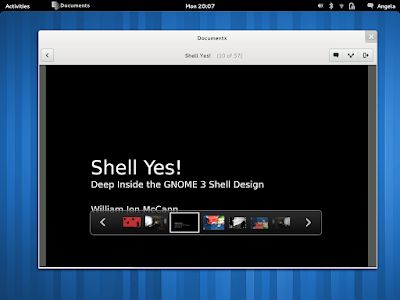
GNOME 3.2 documents

"Documents" is a new application which allows you to manage both online (Google Docs) as well as local documents.


- GNOME Contacts, which includes your contacts from applications such as Evolution or Empathy, in one place:

GNOME Contacts


You can even search for contacts in the GNOME Shell Activities Overview:

GNOME Shell search contacts


or reply to chat from the GNOME3.2 popup notifications (and notification counter):

GNOME 3.2 chat notification


A new Empathy log viewer:

Empathy log viewer gnome 3.2


Web Application mode: you can save websites as "web apps" through Epiphany. The newly created web apps will show up in the GNOME Shell menu, you can add pin them to Dash, etc.:

GNOME 3.2 web apps


GNOME Shell extension one click install


Once click installation support for GNOME Shell extensions: GNOME Shell got a browser plugin which will allow you to install extensions with a click, however, extensions.gnome.org isn't working just yet. Also, according to a message on the GNOME Shell mailing list, even though this feature is not "advertised" for GNOME 3.2, it should work later on:

I think what makes sense is to have the site as a bit of a stealth-beta for this release ... something we're still working on, something we don't advertise as a release feature, but something that you can already use.

(thanks to an anonymous WebUpd8 reader for this tip!)


GNOME 3.2 broadway HTML5 backend

Experimental Wayland and "Broadway" HTML 5 backend for GTK+ 3.2 (which allows you to run applications in a web browser). We've already talked about this a few days ago - see: GTK+ 3.2 Released With HTML5 And Wayland Backends Support.


The user menu which allows you to enable/disable notifications:

GNOME Shell 3.2 user menu


Quick Nautilus previews for pictures, music and other files (like Gloobus Preview), through an application called Sushi. To preview a file, select it and press SPACE:

GNOME 3.2 nautilus previews


New GDM login screen:

GNOME 3.2 GDM login screen


New on-screen keyboard:

GNOME 3.2 on-screen keyboard


Integrated hotplugging:

GNOME 3.2 hotplugging


And a lot more:
  • recent directories in file saving dialog
  • color management in System Settings
  • On tablets and similar touchscreen devices, rotating the device will automatically rotate the screen
  • a counter for the tray notifications
  • window corners are now smoothly anti-aliased

You can read the official GNOME 3.2 release announcement HERE.


GNOME 3.2 video


Here is a video I've recorded with some of the above features (running in Ubuntu 11.10 Oneiric Ocelot):


You may be wondering why I didn't record some of the new GNOME 3.2 features like Broadway backend, etc. and why I've used some of the official GNOME 3.2 screenshots instead of my own. Here's why:
  • GTK+ 3.2 is not built with Broadway backend support in Ubuntu 11.10 (with "--enable-x11-backend" and "--enable-broadway-backend") and building it myself doesn't work either due to a bug in libcanberra it seems (I get a segfault). If you get it to work, please let me know how :)
  • the Nautilus preview feature is missing in Oneiric (Sushi has not been packaged)
  • GNOME Documents is not available in Oneiric yet (as far as I know)
  • GDM 3.2 is not yet available in Oneiric
  • Epiphany in Ubuntu 11.10 doesn't support web apps yet, but I've compiled the latest version for this post (unfortunately, this is the only missing feature that I could "fix" in Oneiric)


Info and some screenshots via library.gnome.org

0 comments

» read more....

Gnome Pie: A Cool New Visual Application Launcher

7:24 PM

Gnome Pie is an application inspired by a World of Warcraft addon called OPie, that tries to offer a different way of launching applications in Gnome.

Gnome Pie

Gnome Pie


Gnome Pie - visual application launcher


Gnome Pie consists on multiple "pies", and each one is triggered by a keyboard shortcut you set.

Each "pie" has it's own role: a category of applications, a media control "pie" (play/pause/previous/next), a "pie" that allows you to control the focused window (maximize, unmaximize, close, etc.) and so on.

You can of course create new or delete some of the already existing pies so you have full control on what each pie does.

Gnome Pie settings

Gnome Pie settings


With Gnome Pie you can basically add as many commands that can be accessed using keyboard shortcuts to a single "pie" so you only have to remember one keyboard shortcut, which some of you might find useful.


The application is Ubuntu-friendly and comes with a PPA for easy installation, an Ubuntu application indicator and even a Unity theme:

Gnome Pie Unity theme
Unity theme


Some of the other built-in themes:

Gnome Pie Adwaita theme
Adwaita theme


Gnome Pie glossy theme
Glossy theme


Gnome Pie video


Here is a video I've created with Gnome Pie in action (you can also see all the available themes):


What's missing?


"Pies" can only trigger applications / commands and run various keyboard shortcuts but you can't combine applications with actions - for instance, you can't select a file and perform some command or do any other fancy stuff that's available in Synapse or Kupfer.


Gnome Pie is eye-catching and fun, but is it useful? What do you think?


Install Gnome Pie in Ubuntu


Gnome Pie worked great in my test but before proceeding, please note that Gnome Pie is experimental so it may not work for you, it may crash, etc.

Install Gnome Pie in Ubuntu 11.10 Oneiric Ocelot, 11.04 Natty Narwhal or 10.10 Maverick Meerkat using the following commands:
sudo add-apt-repository ppa:simonschneegans/testing
sudo apt-get update
sudo apt-get install gnome-pie

If you're not using Ubuntu, you can download Gnome Pie via GitHub.

Once installed, launch Gnome Pie from the menu and then use CTRL + ALT + A to launch some applications, CTRL + Alt + B for bookmarks, etc. You can find all these keyboard shortcuts, change them or create new "pies" in the Gnome Pie Preferences (which you can access via its AppIndicator / Notification Area icon).


To submit a bug or help with the project, check out its GitHub page.

0 comments

» read more....