Ubuntu 12.04
LTS has been
released, so let's take a look at the most important new features and changes.
If you haven't used Unity and you've only seen it in screenshots, at a first look, Ubuntu 12.04 may not seem very different than 11.10, but in fact there have been a huge amount of changes in the latest Ubuntu 12.04 to make Unity more stable, better looking and easier to use and it's not just Unity, but every default package has received special attention to make Ubuntu 12.04 Precise Pangolin pixel perfect.
Unity has matured a lot with Ubuntu 12.04 and has got multi-monitor support, an improved Dash search which now doesn't rely purely on Zeitgeist and of course, there's also HUD, the new optional smart menu that lets you quickly find the action you want to perform without having to manually look through menus.
Further more, Ubuntu Software Center has received Unity integration and is a lot more stable and reliable. There's also a new Qt interface for Ubuntu One, integrated privacy controls in the System Settings so you can choose what shows up in Dash, something which was badly needed, and many other changes designed to improve the user experience compared to previous Ubuntu versions.
Ubuntu 12.04 LTS video
As usual, we'll start the post with a video demoing Unity (with Compiz), the default Ubuntu 12.04 LTS "shell":
(direct video link)And here's another video in which you can see the new login screen, Unity 2D and the GNOME Classic session (not installed by default):
(direct video link)Unity - new lens, smart HUD menu, multi-monitor support and more
One of the major new features in the latest Ubuntu 12.04 LTS Precise Pangolin is HUD, or Head-Up Display which is an alternative to application menus especially designed for Unity (both 3D and 2D) that works everywhere the global menu does and lets you search the menus of either the focused window or the whole application:
It doesn't replace the global menu so even though it's there by default, you're not forced to use it. To use HUD, tap ALT, then type your query. The key can be changed from CompizConfig Settings Manager.
HUD isn't just for active applications, you can also use it to quickly access various indicators:
With Ubuntu 12.04, there's also proper multi-monitor support (for both Unity and LightDM): a launcher with screen edge detection is now displayed on every monitor, so you don't have to travel to another display to launch or switch applications. You can change this though and only use a launcher via "Displays", under System Settings:
There's also a new "push to reveal" launcher behaviour to avoid revealing the Launcher by accident. The new reveal mode can be further tweaked using CompizConfig Settings Manager.
In Ubuntu 12.04, there's been a lot of work to improve the lenses, both the API and the default lens. For instance, the Unity Files lens no longer relies strictly on Zeitgeist, meaning it doesn't only display files that you've previously accessed, but it can be used as a regular search too.
The old home lens which uses some big icons as shortcut for other lenses has been replaced by a new, actually useful lens which displays recently used applications and files:
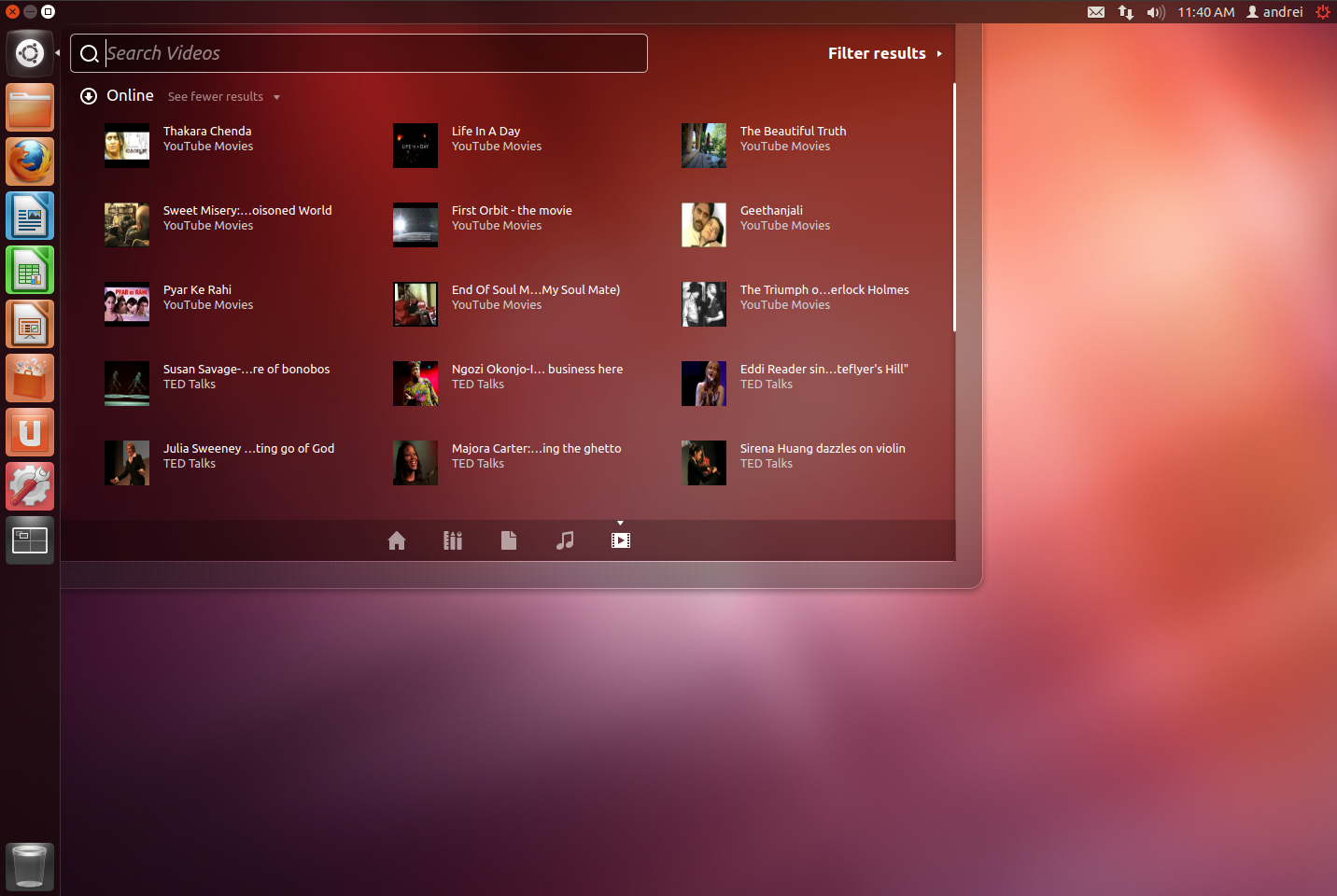
There's also a new video lens that works with both local and online videos (it supports Vimeo, YouTube, Amazon, TED, BBC iPlayer, etc.):
The Unity chameleonic look (it uses the average colour used by the wallpaper) has been further improved. The trash, workspace switcher and mounted devices launcher icons now inherit the background colour too:
Some Unity settings have been integrated into the System Settings (GNOME Control Center), under "User Interface". They are available for both Unity 3D and Unity 2D, however, since not all settings work with both Unity versions (for instance, you can't change the launcher icon size for Unity 2D), only those supported are be displayed for each Unity version:
There aren't many settings available here, but many other Unity aspects can be further tweaked by using CompizConfig Settings Manager or some tools like Unsettings, Ubuntu Tweak or MyUnity.
There have also been some changes to the global menu (AppMenu): the menu is initially displayed on the top bar and is hidden after an amount of time that can be changed (but no, it can't be set to a really high value so the menu doesn't autohide). You can see it in action in the video available in the beginning of the post.
A shortcut hints overlay: (a list of Unity keyboard shortcuts that nicely blends in with the desktop by using the same Dash style) is displayed when pressing and holding the SUPER key, so users can now easily see all the available keyboard shortcuts which is important to use Unity to its full potential:
In Ubuntu 12.04 LTS Precise Pangolin, Notify OSD notifications use the same blur and colour as Dash:
There's also an Unity feature that was previously default, but it has now been completely removed: the Unity launcher dodge-windows mode. There is a
work-around or this though.
Default applications
Rhythmbox has returned as the default music player in Ubuntu 12.04 Precise Pangolin, replacing Banshee. The Ubuntu developers have justified the decision by mentioning some stability issues with Banshee back in Ubuntu 11.10, the startup speed, armel support, having to maintain mono in a LTS, the fact that Banshee is not yet GTK3 ready and the CD space.
Along with Banshee, Tomboy and Gbrainy have been removed too (not being replace by other apps), making Ubuntu 12.04 Mono-free.
Also, Remmina with FreeRDP is now the default remote desktop client, replacing Vinagre and rdesktop.
Zeitgeist Activity Log Manager has been included in the Ubuntu 12.04 System Settings by default. Using it, you can clear your Dash history, blacklist applications activity or folders from showing up in Dash:
Just like the previous release, Ubuntu 12.04 uses Unity 3D (with Compiz) as the default desktop interface on top of GNOME 3.4, with Unity 2D (Qt) as the fallback interface. The latest GNOME Shell 3.4.1 is available in the repositories and so is a classic GNOME session which looks more or less like the old GNOME 2.3x, so you can easily install them using Ubuntu Software Center.
Ubuntu 12.04 Precise Pangolin comes with: Firefox 11.0, Thunderbird 11.0.1, Nautilus 3.4.1, Gedit 3.4.1, Ubuntu Software Center 5.2, Deja Dup Backup Tool 22.0, LibreOffice 3.5.2, Shotwell 0.12.2, Rhythmbox 2.96, Totem 3.0.1, Empathy 3.4.1, Transmission 2.51, Gwibber 3.4.0, GNOME Control Center (System Settings) 3.4.1, Unity 5.10 on top of GTK 3.4.1.
Also, Precise includes the 3.2.0-23.36 Linux kernel which is based on the v3.2.14 upstream stable Linux kernel and Xorg server 1.11.4.
Ubuntu 12.04 artwork
The Ubuntu 12.04 Precise Pangolin
default wallpaper, just like in the previous releases,
is a a slightly modified version of the previous background:The Light themes (Ambiance and Radiance) have received many enhancements and fixes, including a new titlebar gradient, unfocused state and more:
LightDM now reads the user background so when selecting an user from the LightDM login screen, the background changes to that of the user's:
The Unity Greeter (the LightDM login screen) uses a new session chooser dialog which displays the logo for each desktop environment available and displays a nice animation when navigating through its menu:
Other changes
The
Ubuntu installer displays a Twitter stream for the #Ubuntu hashtag:
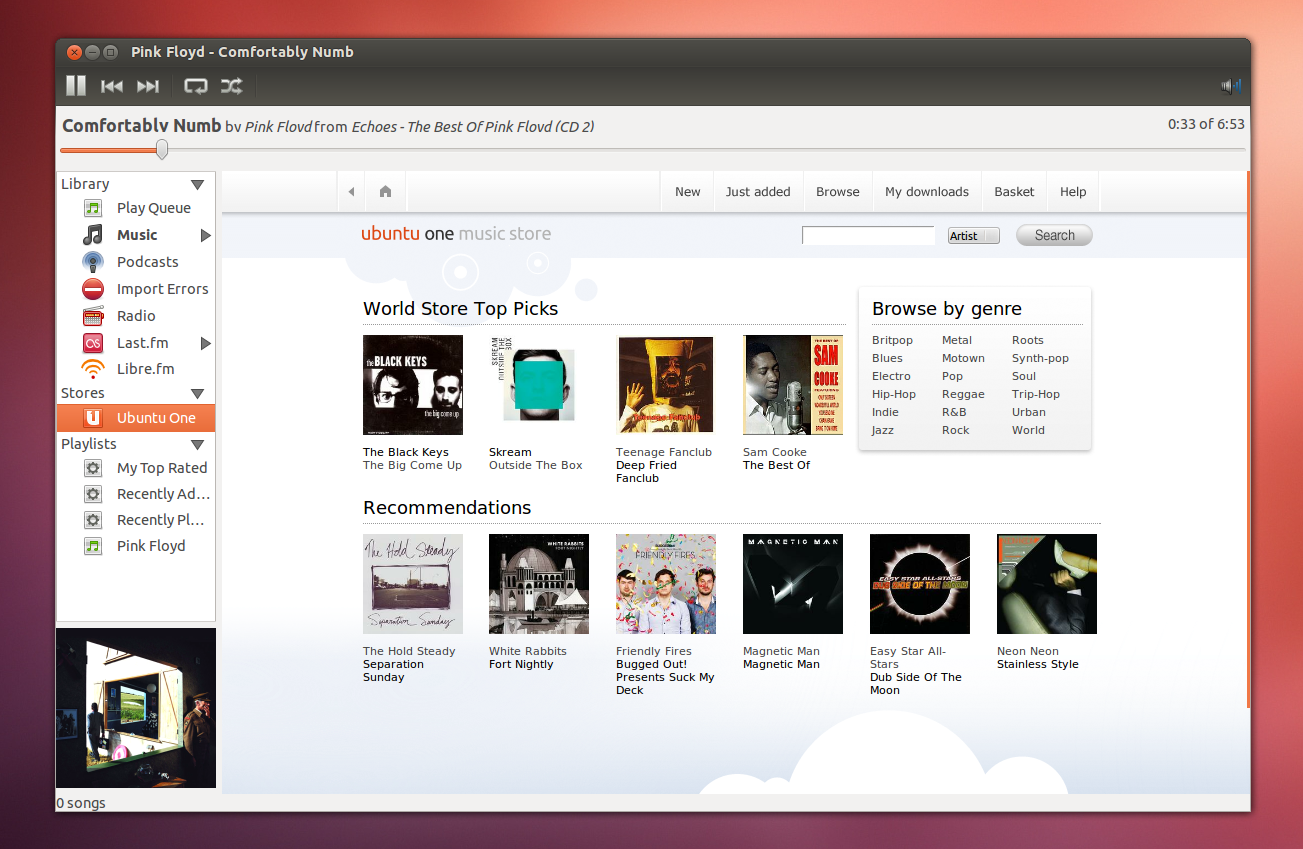
Ubuntu One has switched to a new Qt interface by default, replacing the old GTK version. Among the reasons behind this decision are: deprecated pygtk bindings, uniform interface across all the platforms, usability and others:
Ubuntu One now also has proxy support and the Evolution contacts sync has been removed.
By default, the Ubuntu Software Center now adds newly installed applications to the launcher using a nice animation and a progress bar lets you see its installation status. This can be disabled though. You can see it in action in the video available in the beginning of the post. Ubuntu Software Center also got a new category: Books & Magazines, support for multiple screenshots, PayPal support, recommendations system, language packs support (when installing new software through Ubntu Software Center, corresponding language support package are now installed alongside automatically) and more.
Ubuntu Precise uses the
PAE kernel by default. The PAE kernel allows addressing more than 4GB of system memory, which isn't available for a non-PAE kernel (more about PAE,
here). The non-PAE kernel is, however, still available for installation.
Unity 2D
Unity 2D, the fallback session, got most of the new features available for the default Unity (with Compiz):
- a new home lens
- video lens
- Dash finally got buttons to close or maximize/minimize it
- just like Unity 3D, Unity 2D now uses a chameleonic look based on the average colour of the wallpaper
- HUD is also available for Unity 2D
Here are a few Unity 2D screenshots:
Classic session
The classic GNOME session now has working indicators by default (Ubuntu Sound Menu, Messaging Menu, etc.), though unfortunately, there are some glitches with the theme that hasn't been fixed but hopefully an update will make it bug-free. Besides indicators, the classic GNOME session now also supports Compiz without any further tweaks.
Ubuntu 12.04 uses Unity 2D as the fallback session by default, so if you want to use the Classic (Fallback) GNOME Session, you'll have to install it:
sudo apt-get install gnome-session-fallback
Once installed, log out and select "GNOME Classic" from the login screen.
Even more new feature changes:- users can change Dash colour
- a Show Desktop icon is available for the Unity launcher (it can be enabled through CompizConfig Settings Manager or other such tools)
- a new "launcher switcher" has been added which you can use to switch between applications via the Unity Launcher using SUPER + TAB.
- per workspace ALT + TAB switcher (this is configurable and you can use a multi-workspace ALT+TAB switcher by disabling the "Bias alt-tab to prefer windows on the current viewport" checkbox)
- RC6 for Sandy Bridge has been enabled by default. This allows the GPU to go into a very low power consumption state when the GPU is idle
- DNS resolution is now done through dnsmasq, which should help split-DNS VPNs and faster DNS resolution
- Enhanced ClickPad support
- quicklists for most default applications and for BFB (the Ubuntu button which opens Dash)
- Landscape, a system management tool that "helps you monitor, manage and update your entire Ubuntu infrastructure from a single interface" is now available in System Settings
- For compatibility with Debian, the Unix sudo group has changed from "admin" to "sudo"
There were many many other changes and it's impossible to write about each and every one of them in a single post, so give Ubuntu a try and discover what's new for yourself. I am confident that if you give it a chance, you'll be surprised by how much it has improved.
Upgrade to Ubuntu 12.04 LTS
To upgrade to Ubuntu 12.04 LTS Precise Pangolin, firstly make sure all the packages are up to date:
sudo apt-get update
sudo apt-get upgrade
And then run the following command:
update-manager -d
The Update Manager window should pop up, notifying you that a new Ubuntu release "12.04" is available. Click "Upgrade" and follow the on-screen instructions.
Download Ubuntu 12.04 LTS
If you're new to Ubuntu,
take the tour before installing it!
Alternate download links |
download mirrors.
Also see:
If you've just installed Ubuntu 12.04 LTS, also check out this post: Things To Tweak After Installing Ubuntu 12.04 Precise PangolinHave you upgraded to Ubuntu 12.04 LTS already? What do you think so far?
Unity multi-monitor screenshot via Nicholas.
» read more....