Cinnamon Themes, Applets And Extensions PPA Repository [Ubuntu, Linux Mint, LMDE]

6:24 PM

cinnamon settings

WebUpd8 reader Brian Bentsen has created a PPA repository to easily install extra Cinnamon themes, applets and extensions in Ubuntu, Linux Mint and LMDE.

The PPA is new but it already provides around 40 packages, including a classic menu applet, Gpaste, hardware monitor applet, messaging menu, places applet, force quit, window menu, window icon list, coverflow alt-tab as well as themes like Eleganse, Holo, ICS, elementary, Ambiance, Glass, Baldr and many others.

Here are a few screenshots with some of the applets / extensions available in this repository:

cinnamon linux mint classic menu
Linux Mint Classic Menu

cinnamon window icon list
Window Icon List

cinnamon messaging menu
Messaging Menu

cinnamon hardware monitor
Cinnamon hardware monitor

cinnamon coverflow alt-tab
Coverflow alt-tab

And themes (there are many other themes available in the PPA):

cinnamon ambiance theme
Ambiance

cinnamon baldr theme
Baldr

cinnamon eleganse theme
Eleganse


Add the Cinnamon Extras PPA and install applets and themes in Ubuntu, Linux Mint and LMDE


The PPA is only available for Ubuntu 11.10 Oneiric Ocelot, but the applets / themes work just fine under Ubuntu 12.04 Precise Pangolin (using Cinnamon installed from its Nightly builds PPA) so you can use it under Ubuntu 12.04 too, by tweaking the repository to use "oneiric" instead of "precise". But please note that by using the applets and themes with an unstable Cinnamon version, they can stop working at some point.

Add the PPA in Ubuntu / Linux Mint using the following commands:
sudo add-apt-repository ppa:bimsebasse/cinnamonextras

For Ubuntu 12.04, replace "oneiric" with "precise" for the repository .list file using the following command:
sudo sed -i 's/precise/oneiric/g' /etc/apt/sources.list.d/bimsebasse-cinnamonextras-precise.list

Then, for any Ubuntu (or Linux Mint 12) version, update the software sources:
sudo apt-get update


To add the Cinnamon Extras repository in Linux Mint Debian (LMDE), run the following commands in a terminal:
echo "deb http://ppa.launchpad.net/bimsebasse/cinnamonextras/ubuntu oneiric main" | sudo tee /etc/apt/sources.list.d/bimsebasse-cinnamonextras.list
echo "deb-src http://ppa.launchpad.net/bimsebasse/cinnamonextras/ubuntu oneiric main" | sudo tee -a /etc/apt/sources.list.d/bimsebasse-cinnamonextras.list
sudo apt-key adv --keyserver keyserver.ubuntu.com --recv-keys 4FA9719D
sudo apt-get update


Once the Cinnamon Extras PPA repository has been added, use Synaptic or the Linux Mint Software Manager, etc., and search for "cinnamon" - you should see all the available themes, applets and extensions available for installation. Then use Cinnamon Settings to enable newly applets, extensions or change the Cinnamon theme.

0 comments

» read more....

Linux Mint Debian Update Pack 4 Goes Stable (Cinnamon, GNOME Shell And Mate Included)

12:39 AM

linux mint debian cinnamon
Cinnamon

Linux Mint Debian Update Pack 4 is finally considered stable and is now available for all LMDE users. The update replaces GNOME 2 with GNOME Shell (although it's possible to "freeze" LMDE to GNOME 2) and it also brings Cinnamon and Mate desktop, so LMDE users can choose from three GNOME-based "shells".

With this update, the Kernel is also updated to version 3.2, Firefox and Thunerbird to the latest stable version (11) and more.

LMDE Mate desktop
MATE Desktop

An updated Linux Mint Debian ISO should be available in the coming days and it will use MATE 1.2 (with working Compiz) as the default desktop, while Cinnamon will be available as a secondary desktop.

Until then, you can download the existing LMDE iso and upgrade to the latest LMDE Update Pack 4 following the instructions on the Linux Mint blog. Once you're running the latest updates, you can install Cinnamon or Mate using the following commands:

- for Cinnamon:
sudo apt-get install cinnamon
- for Mate:
sudo apt-get install mate-desktop-environment

0 comments

» read more....

Linux Mint Debian Update Pack 4 On The Way; To Bring Cinnamon, GNOME Shell And MATE

5:49 PM

Linux Mint Debian (LMDE) is a rolling release distribution based on Debian Testing. 

LMDE Update Pack 4, which will include Linux Kernel 3.2, Mate Desktop 1.2 (a renamed GNOME 2 desktop), Cinnamon 1.4 (GNOME Shell fork), GNOME Shell 3.2.2, KDE 4.7.4 and Xfce 4.8, "is being prepared and tested at the moment" and should be available soon.

In a comment, Clement Lefebvre, the Linux Mint Project Leader, has specified that a new respin of LMDE ISOs will be available too when Update Pack 4 will be released. He also stated that it hasn't been decided yet if MATE or Cinnamon will be made default and if they will both be on the ISO, but "both will be fully supported".

If you don't like any of the desktop environments available with LMDE Update Pack 4, you'll be able to avoid the update, keeping GNOME 2, by changing the software sources as explained on the Linux Mint blog.


Install Linux Mint Debian Update Pack 4 (testing only!)


LMDE Update Pack 4 can already be tested: download LMDE from HERE, then install Update Pack 3 using the Update Manager and then, to install Update Pack 4, you'll need to add the Linux Mint Debian testing repositories - to do this, run the following command in a terminal:
gksu gedit /etc/apt/sources.list

And replace the contents of this file with the following repositories:
deb http://packages.linuxmint.com/ debian main upstream import
deb http://debian.linuxmint.com/incoming testing main contrib non-free
deb http://debian.linuxmint.com/incoming/security testing/updates main contrib non-free
deb http://debian.linuxmint.com/incoming/multimedia testing main non-free

linux mint debian update pack 4


Then open the Linux Mint Update Manager, click "Refresh" so the software sources are updated and LMDE Update Pack 4 should be available for installation.

After the upgrade, only the GNOME Shell and GNOME Fallback sessions will be available:


lmde gnome shell
LMDE - GNOME Shell


To install Cinnamon, use the following command:
sudo apt-get install cinnamon

lmde cinnamon
Cinnamon


To install MATE, use:
sudo apt-get install mate-desktop-environment

lmde - mate
MATE

Then log out and select MATE / Cinnamon from the GDM login screen.


0 comments

» read more....

Cinnamon 1.4 Released With New Hot Corner Behaviour, More

7:12 AM

Cinnamon is a GNOME Shell fork which tries to offer a layout similar to GNOME 2: it comes with a panel at the bottom by default (optionally, you can use 2 panels or a panel at the top) that supports autohide, panel applets, a classic system tray, GNOME2-like notifications and so on, but using GNOME 3.

Hot corner: workspace selection
Hot corner: window selection

Cinnamon 1.4 has been released today and the major change in this release is a new hot corner behavior which can now use either workspace selection (like Compiz "Expo") or window selection (like Compiz "Scale"). In expo mode, you can add or remove workspaces and when you hover a workspace, the windows are arranged like in the overview so you can see all available windows (which you can drag onto another workspace, etc.). Also, the hot corner position can now be changed.


Cinnamon Settings applet

Other changes in Cinnamon 1.4:
  • Panel edit mode
  • A new Cinnamon Settings panel applet which lets you restart Cinnamon, start Looking Glass, restore all settings to default, quickly access panel settings, and so on (see screenshot above)
  • Option to only use workspaces on primary monitor
  • Cinnamon menu editor (forked from alacarte)
  • Improved support for RTL languages
  • Added 'Visible on all workspaces' and "Move to workspace" to the window list
  • Favourites improvements (you can add an application to the favourites by drag and drop, etc.)
  • Many bug fixes

Here's a video I've recorded, demoing the latest Cinnamon 1.4:


(video link)


I've recorded the video on an old laptop so it's kind of choppy, sorry about that.


Install Cinnamon


Cinnamon 1.4 is already available in the Linux Mint 12 repositories.

For Ubuntu 12.04 or 11.10, Cinnamon is available in a new PPA - add it and install Cinnamon 1.4 using the commands below:
sudo add-apt-repository ppa:gwendal-lebihan-dev/cinnamon-stable
sudo apt-get update
sudo apt-get install cinnamon

For other Linux distributions, see the Cinnamon download page.

Thanks to Graham Davies for the tip!

0 comments

» read more....

Alternative Cinnamon PPA For Ubuntu Users

2:25 AM

cinnamon 1.3.1

Cinnamon 1.3 was released almost a week ago, with version 1.3.1 following shortly and for some reason, the PPA we've posted a while back hasn't been updated with either of these versions. A new PPA has been created so Ubuntu users can easily get updates without having to manually download the .deb files.

To add the new PPA and install the latest Cinnamon in Ubuntu 12.04 Precise Pangolin or 11.10 Oneiric Ocelot, copy/paste the following commands in a terminal:
sudo add-apt-repository ppa:gwendal-lebihan-dev/cinnamon-stable
sudo apt-get update
sudo apt-get install cinnamon

You can remove the previous PPA (ppa:merlwiz79/cinnamon-ppa), but it's not mandatory and leaving it won't affect anything. A note though: some (possibly all) extensions you may have installed from the ppa:merlwiz79/cinnamon-ppa PPA won't work with the latest Cinnamon 1.3.1. But most of them have been converted to applets and are now built-in anyway.

Update: there's also a nightly Cinnamon PPA which you can use to get new features faster (but it's not stable and you may encounter many bugs!). To add the Cinnamon Nightly PPA and install Cinnamon in Ubuntu 11.10 or 12.04, use the following commands:
sudo add-apt-repository ppa:gwendal-lebihan-dev/cinnamon-nightly
sudo apt-get update
sudo apt-get install cinnamon

0 comments

» read more....

Cinnamon 1.3 Released With More Customization Options

12:30 AM

cinnamon 1.3 desktop

Cinnamon 1.3 has been released today, bringing even more customization options for its users.

Cinnamon Settings has a new look and it now includes all the GNOME Tweak Tool features and more: change GTK theme, cursor and icons, desktop icons, font settings, window settings (including window button order), change the menu text and icon and so on:


Also, starting with Cinnamon 1.3, all the panel components are applets so you can easily remove a feature or replace it with a 3rd party applet if you don't like it:


Another applets change brings drag and drop support, meaning you can place the applets anywhere you want on the panel. In my test, the workspace switcher, window list and the launcher weren't draggable though, but I could reorder the other applets just fine.


Other changes:
  • Menu delay option, better menu icon sizes
  • improved default theme
  • workspace navigation is now possible in scale mode

To install Cinnamon in your Linux distribution, check out THIS page.

Ubuntu users can install Cinnamon using a PPA. However, at the time I'm writing this, the PPA hasn't been updated with the latest Cinnamon 1.3 - if you can't wait, you can manually download the .debs: Muffin (required dependency) and Cinnamon.

For more themes, applets and extensions, visit the Cinnamon website.


0 comments

» read more....

Cinnamon 1.2 Released With Desktop Effects, Multiple Layouts, More

3:48 AM


Cinnamon, the GNOME2-like GNOME Shell fork, has reached version 1.2, which is considered fully stable. The new release brings many new features, but also separates Cinnamon even more from GNOME Shell.


Here's a Cinnamon 1.2 video I've just recorded:


Major new features in Cinnamon 1.2:


- Desktop effects -  for now, there are only 2 animation plugins for various window events (close, minimize, maximize, etc): fade and scale, with 30 transition styles:


- Desktop layouts: you can now select from 3 available desktop layouts: traditional (one panel at the bottom), flipped (one panel at the top) or classic (one panel at the top and one at the bottom):


- Cinnamon Settings: Even though you've seen Cinnamon Settings in our previous Cinnamon post, this is actually the first public release for the new Cinnamon settings tool, which you can see in the screenshots above. Using it, you can customize desktop effects, change the theme, enable or disable extensions and other tweaks.


- Applets: these are some special extensions that make use of a new API and they don't depend on the Cinnamon version. Cinnamon 1.2 comes with 5 such applets: accessibility, recent documents, removable drives, trash and display (xRandR monitor control).


Other changes:
  • significantly improved menu (you can press enter after a search to launch the first item; also, Administration and Preferences categories are back, like in Gnome 2)
  • As we wrote in our previous post, Cinnamon now uses Muffin, a Mutter fork, as its window manager
  • GNOME Shell themes are no longer compatible with Cinnamon
  • The Overview has been replaced by a desktop Scale plugin (also triggered by CTRL + ALT + UP/DOWN). You can still switch between desktops by using the built-in panel desktop switcher or keyboard shortcuts (CTRL + ALT + LEFT/RIGHT)


Download Cinnamon


To install Cinnamon in Ubuntu, either download the deb files via GitHub (both Cinnamon and Muffin are required):

Or use the Cinnamon PPA:
sudo add-apt-repository ppa:merlwiz79/cinnamon-ppa
sudo apt-get update
sudo apt-get install cinnamon


Download Cinnamon


0 comments

» read more....

Cinnamon Available To Install Via PPA For Ubuntu, More News

7:55 PM

cinnamon desktop settings

Cinnamon, the GNOME2-like GNOME Shell fork is now available in a PPA so Ubuntu users can easily get updates without having to manually download the .deb files.

Besides Cinnamon itself, the PPA also provides Cinnamon Settings, a new GUI tool that lets you configure Cinnamon: enable/disable panel autohide, tweak the date on the panel, enable/disable overview icon or hot corner, enable/disable themes and extensions.

Using the latest Cinnamon via GIT, you can also move the panel to the top (this feature should be available in the next Cinnamon release) and tweak some other settings.


Here's a video I've recoded running the latest Cinnamon from GIT (so there are some extra features that aren't available in the PPA yet):


Install Cinnamon in Ubuntu via PPA


Update: the PPA in this post has been updated with a new one which lets you install the latest Cinnamon (1.3.1 at the time of this update). See this: Alternative Cinnamon PPA For Ubuntu 12.04 and 11.10 Users.

To install Cinnamon Desktop and Cinnamon Settings under Ubuntu 11.10 Oneiric Ocelot via PPA, use the commands below:
sudo add-apt-repository ppa:gwendal-lebihan-dev/cinnamon-stable
sudo apt-get update
sudo apt-get install cinnamon

Once installed, log out and select "Cinnamon" from the login screen session list.


There's also a new Cinnamon Themes repository available on GitHub, but package isn't yet available in the PPA. Until it's uploaded, you can use the commands below to install the 8 beautiful themes you've seen in our video:
sudo apt-get install git-core
cd && git clone https://github.com/linuxmint/cinnamon-themes.git
cd cinnamon-themes
./test


And speaking of Cinnamon, the latest GIT version uses Muffin, a new Mutter fork created by the same Clement Lefebvre, as its window manager. For now, there aren't too many differences between Mutter and Muffin, but it will be interesting to see where this goes.

0 comments

» read more....

Install Cinnamon On Fedora Or openSUSE

11:10 PM

Cinnamon desktop fedora

Cinnamon, the GNOME Shell fork created for Linux Mint by Clement Lefebvre, is available for openSUSE and Fedora.

For Fedora 16, Cinnamon can be installed through a repository created by a Fedora user - add the repository and install Cinnamon, use the commands below:

su -
curl http://repos.fedorapeople.org/repos/leigh123linux/cinnamon/fedora-cinnamon.repo -o /etc/yum.repos.d/fedora-cinnamon.repo
yum install cinnamon

Then log out and select Cinnamon in the GDM login screen:


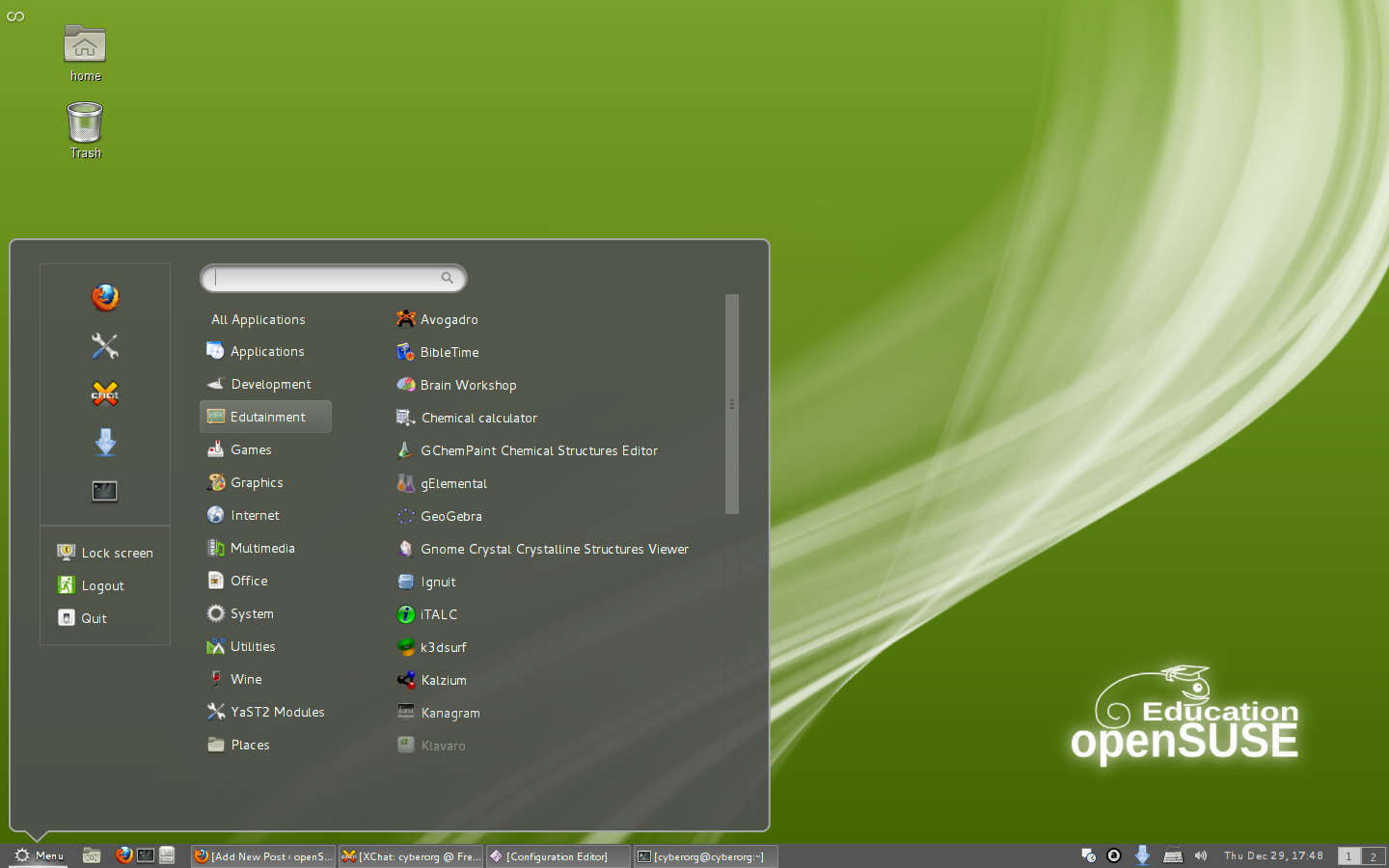
Cinnamon desktop opensuse

For openSUSE 12.1, you can download Cinnamon from HERE - this will also install the official GNOME Shell extensions, tweaked to work with Cinnamon.

Once installed, you need to use dconf-editor if you want to enable the extensions: navigate to org > cinnamon > enabled extensions and add the extensions you want to enable. Example:
['system-monitor@paradoxxx.zero.gmail.com', 'apps-menu@gnome-shell-extensions.gnome.org', 'dock@gnome-shell-extensions.gnome.org', 'drive-menu@gnome-shell-extensions.gnome.org', 'places-menu@gnome-shell-extensions.gnome.org', 'windowsNavigator@gnome-shell-extensions.gnome.org', 'xrandr-indicator@gnome-shell-extensions.gnome.org']


Please note that I've only tested Cinnamon on Fedora 16.


via ossblog.it, linuxbsdos.com, lizards.opensuse.org (+openSUSE image credits)

0 comments

» read more....

Cinnamon 1.1.3 Released With Panel Autohide, More

11:22 PM


Cinnamon is a GNOME Shell fork created by Clement Lefebvre, the Linux Mint founder, which tries to offer a layout similar to GNOME 2: a bottom panel with launchers, GNOME2-like systray and notifications and more.


Cinnamon 1.1.3 has been released today, bringing some new features as well as many improvements and bug fixes:
  • panel autohide
  • the Overview Hot Corner or icon can be disabled
  • menu improvements, including: right click the icons in the menu to "Add to panel", "Add to desktop", "Add/Remove to/from favorites" or configuring the "Menu" text
  • Panel Launchers now have tooltips
  • themes in ~/.themes are now detected
  • thumbnails from theme.json files in Gnome Shell themes are now used
  • windows in overview now feature icons for easier recognition
For a complete list of changes, see the release announcement.

To enable/disable bottom panel autohide, change the menu text and so on, you'll need to use dconf-editor. Install it using the following command:
sudo apt-get install dconf-tools

Then launch dconf-editor and navigate to org > cinnamon. Here you'll find all the available options.


Install Cinnamon


Installing Cinnamon won't break GNOME Shell so the two can be installed and used side-by-side.

For Ubuntu 11.10, you can download Cinnamon deb files via its GitHub page - install both "cinnamon" as well as "cinnamon-session".

For Linux Mint 12, use the following command:
sudo apt-get install cinnamon-session

Once installed, log out and select "Cinnamon" in the login screen.

For other Linux distributions such as Arch Linux, Fedora, OpenSuse, etc., see the Cinnamon download page.

0 comments

» read more....

Cinnamon: GNOME Shell Fork With A GNOME2-Like Layout

2:11 AM


Clement Lefebvre, the Linux Mint founder, has started working on a GNOME Shell fork called Cinnamon, which tries to offer a layout similar to GNOME 2, with emphasis on "making users feel at home and providing them with an easy to use and comfortable desktop experience":

Cinnamon is a Linux desktop which provides advanced innovative features and a traditional user experience. The desktop layout is similar to Gnome 2. The underlying technology is forked from Gnome Shell.


Why Fork GNOME Shell?


Why fork GNOME Shell? According to Clement Lefebvre (who talked about this on IRC @ #mate), the reason is that even though extensions are cool, you can only do a small amount of stuff with them and you can't control interactions between extensions, their loading order and so on.

Among the features that we'll probably see in Cinnamon are GNOME2-like notifications and systray icons, option to change the panel position and other panel options like autohide, etc. Some of these features are already available through Mint GNOME Shell Extensions (MGSE), but their functionality is pretty limited.


Cinnamon code already available


The screenshot you see in the beginning of the post is Cinnamon, not the MGSE Bottompanel/Windowlist/Menu extensions. 

At a first look, Cinnamon looks and behaves a lot like GNOME Shell with Mint GNOME Shell Extensions, except the MGSE features are built-in (the panel settings for instance, hasn't been implemented yet).

However, if you look more closely, you'll notice that there's no message tray - it has been replaced with a classic "systray" at the bottom and the notifications look like in GNOME 2.


Here's another screenshot in which you can see the Activities Overview:


Yes, there's no "Applications" tab so apparently the Activities Overview only has the workspace functionality. At least for now.


Test Cinnamon


The Cinnamon code can be downloaded via Github. Remember, Cinnamon is in it's early development stages so expect to find bugs and missing features!

Update:
- Ubuntu PPA now available: Cinnamon Available To Install Via PPA For Ubuntu, More News
- Repository for Fedora or OpenSUSE: Install Cinnamon On Fedora Or openSUSE


Many thanks to Antoni "Pinguy" for the tip!

0 comments

» read more....