SkypeTab-NG Gets Better Unity Support

8:11 PM


SkypeTab

SkypeTab-NG, a tool that adds tabs to Skype for Linux, has been updated recently, getting some Unity tweaks:
  • SkypeTab's menu is now visible in Skype's indicator menu (Ubuntu 11.10+). From the settings, you can select to start SkypeTab automatically, which window types to wrap in SkypeTab: chats, file transfers and calls and more. Previously, the SkypeTab settings menu entry didn't show up for Unity users;
  • (Unity launcher) Urgent animation is now displayed until the user reads all messages. This can be disabled from the SkypeTab settings

To install the latest SkypeTab-NG in Ubuntu 12.04, 11.10, 11.04, 10.10 or 10.04, use the following commands:
sudo add-apt-repository ppa:keks9n/skypetab
sudo apt-get update
sudo apt-get install skypetab-ng

From now on, to get tabs for Skype, start SkypeTab instead of Skype from the menu / Dash!

SkypeTab is also available for: Arch Linux (AUR), Fedora and openSUSE. 

For source code and bug reports, see the SkypeTab-NG GitHub page.

0 comments

» read more....

Skype For Linux With Tabs Support Using SkypeTab NG (Next Generation)

3:42 AM


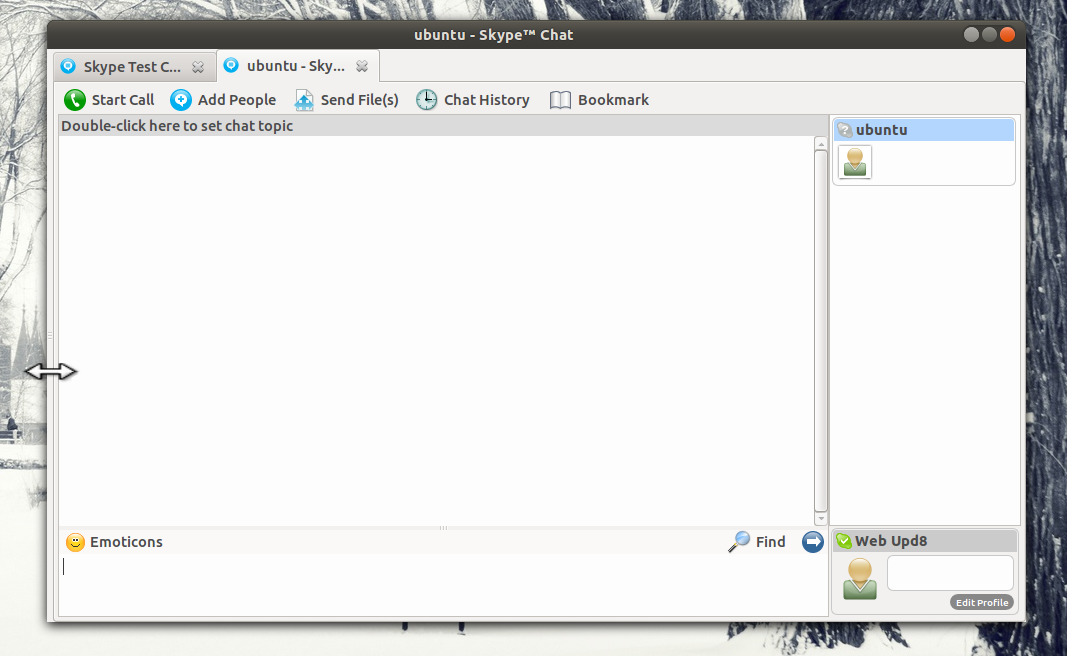
SkypeTab-NG (NG stands for Next Generation) is a tool that adds tabs to Skype for Linux. Besides providing a tabbed chat window, the SkypeTab-NG also embeds both the conversation and the main Skype windows in a single window.

SkypeTab is not new, but it was recently rewritten, fixing most bugs from the previous SkypeTab, like the annoying laggy window movement bug. Also, SkypeTab used to only work with Compiz, Openbox and Xfwm but the new version should work with other window managers too, like Kwin, etc (I've actually tested it under Kubuntu 11.10 Oneiric Ocelot and it worked just fine).


The main Skype window can be collapsed by dragging the separator between the main Skype window and the tabbed chat window, to the left. You can get the main Skype window back by simply dragging the separator to the right:


To get tabs for the Skype chat window, install SkypeTab-NG in Ubuntu (available for Ubuntu Oneiric, Natty or Lucid but I've only tested it on Oneiric!) using the commands below:
sudo add-apt-repository ppa:keks9n/skypetab
sudo apt-get update
sudo apt-get install skypetab-ng

Arch Linux users: SkypeTab-NG is available in AUR. For other Linux distributions, get SkypeTab-NG from HERE.

To use it, start SkypeTab from the menu instead of Skype!


If you encounter bugs, report them to the Skype Tab GitHub page.

0 comments

» read more....

Record Audio From Sound Card Or Microphone [W/ Built-in Skype Call Recorder]

3:47 PM

Audio Recoder

Audio Recorder is a Linux tool to record audio from your system's sound card or microphone and comes with some interesting advanced features such as a timer, automatic Skype call recorder and more.


Audio Recorder features:
  • records your system's sound card, microphone, browser, webcam and so on
  • built-in timer: you can start, stop or pause the recording at a pre-defined time or after a certain amount of time
  • automatically start recording on either voice or sound
  • automatically stop recording on silence
  • it can be automatically controlled by Rhythmbox, Banshee, Amarok and other MPRIS compatible players as well as Skype. For instance, it can record all your Skype calls without any user interaction
  • supported formats: OGG, flac, mp3, mp2, m4a, spx and wav
  • Ubuntu AppIndicator support


To get Audio Recorder to automatically record your Skype calls, make sure you select "Yes" and check the "Remember this selection" box when Skype asks to authorize Audio Recorder:

Audio Recorder Skype


Install Audio Recorder in Ubuntu


Audio Recorder has its own PPA, available for Ubuntu 11.10, 11.04 and 10.10 - add it and install Audio Recorder using the commands below:
sudo add-apt-repository ppa:osmoma/audio-recorder
sudo apt-get update
sudo apt-get install audio-recorder

To be able to record in various formats, you'll have to install some Gstreamer plugins: base for OGG, "good" for Wav and Flac, ugly/multiverse for mp3 and bad/multiverse for AAC and m4a. Install them all using the following command:
sudo apt-get install gstreamer0.10-plugins-base gstreamer0.10-plugins-good gstreamer0.10-plugins-ugly gstreamer0.10-plugins-ugly-multiverse gstreamer0.10-plugins-bad gstreamer0.10-plugins-bad-multiverse


To download the source code or report bugs, check out Audio Recorder's Launchpad page.

0 comments

» read more....

GNOME3 Notifications For Skype

5:41 PM

Skype Notifications GNOME3

Skype Notifications GNOME3

John Stowers (the GNOME Tweak Tool developer) has updated the old skype-notify Python script to work with the new GNOME 3 notifications.

The updated Skype-Notify script respects the new GNOME3 notification capabilities like showing transient or permanent notifications, etc., however, you can't reply from the notifications.


Get GNOME3 Notifications for Skype


1. Download the python script from HERE, extract it and place the script somewhere - let's say in a folder called "skype" in your home directory.

2. Make the script executable. If you've placed it in the "skype" folder in your home directory, run this command:
chmod +x ~/skype/skype-notify.py

3. In the Skype options, on the Notifications tab click "Advanced View", then check the "Execute the following script on any event" box and under it, paste this:
/path/to/skype-notify.py -e"%type" -n"%sname" -f"%fname" -p"%fpath" -m"%smessage" -s%fsize -u%sskype

In the above command, replace "/path/to/skype-notify.py" with the path to where you've placed the skype-notify.py script (like /home/YOUR_USERNAME/skype/...).


And you are done. Now the next time you'll receive a Skype notification, Skype will prompt you to authorize the script - check the "Remember this selection" box, then "Yes" and you are done.

At this point, you'll receive both GNOME3 and Skype notifications in the same time so if you want, you can disable the original Skype notifications (from the Skype options, on the Notifications tab, click "Advanced view" and then select each notification and disable "Display popup notification").

Thanks to John Stowers for the tip!

0 comments

» read more....